Overview of Licensing
The Desigo CC software requires a valid license to run. Typically, the license is stored on the Desigo CC server.
Generally, a valid customer license includes:
- A set of license features to cover the hardware configuration of the system and the site, such as the number of client stations or field points.
- A set of option license features to enable additional or extended Desigo CC functionality, such as assisted treatment or reactions. See Overview of Licensing.
Depending on the license found on the server, the Desigo CC clients may run in the following ways:
- If a valid and sufficient license is found, the Desigo CC client will run normally, with full functionality. See License Modes.
- If no valid license is found, the Desigo CC client can only run for 30 minutes. See License Modes.
- If there is a valid license but it is not sufficient (for example, it does not cover all the field points configured in the project) then the Desigo CC client can operate for a maximum of 30 days. See License Modes.
- There is also a special site-configuration session license that is used in conjunction with a dongle to initially set up and configure the project. See License Modes.
Licenses Properties
When you select Licenses under Project > Management System > Servers > Main Server in Management View of System Browser, the license properties are displayed in the Extended Operation tab. This provides information about the currently active license.
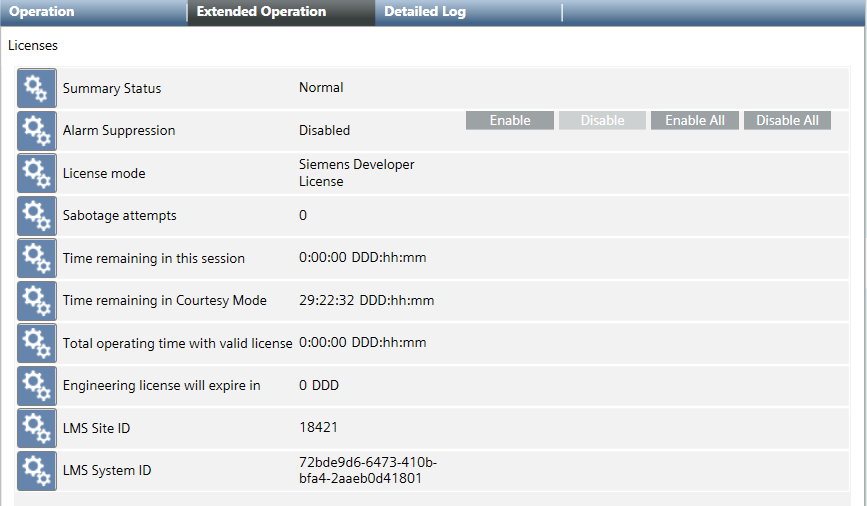
Property | Description |
License mode | Desigo CC current license mode. |
Sabotage attempts | Number of sabotage attempts. |
Time remaining in this session | Residual time in the current Demo Mode or Engineering-license session.
|
Time remaining in Courtesy Mode | Residual time in Courtesy Mode, during which it is possible to temporarily work with the project until a valid and sufficient license is installed again. |
Total operating time with valid license | Duration counter that indicates how long Desigo CC has been continuously working with a valid and sufficient license (that is, in Normal Mode). |
Engineering license will expire in | How many days until the Engineering license expires. |
LMS Site ID | Identifier of the customer. |
LMS System ID | identifier of the Desigo CC server computer. |
For more details about the currently active license, see Overview of Licensing, below.
License Features List
Selecting Licenses in System Browser, the Desigo CC license details are displayed in the Default tab, including the current license mode (for example, Normal Mode).
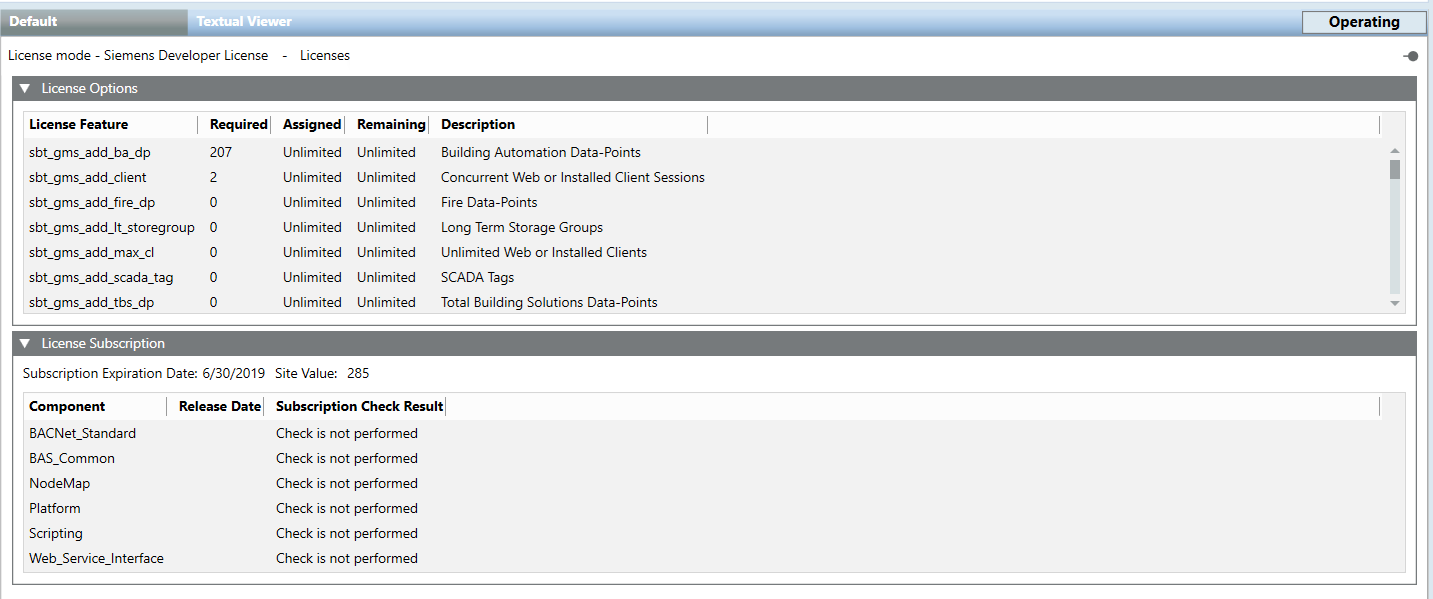
The License Options expander displays the list of the license features. For each license feature:
- The Required column indicates how many copies of that license feature must be installed for Desigo CC to operate normally (that is, to run in Normal Mode). Note that the Required column will show 0 for option license features (such as, assisted treatment) because the system will still function in Normal Mode even without those features installed.
- The Assigned column indicates how many copies of that license feature are being used. The assigned copies of each license feature must match (or exceed, in the case of option license features) the required copies for the system to run in normal mode.
- The Remaining column indicates how many copies of that license feature are still available (that is, how many of the installed copies are still unused).
- The Description column provides a brief description of the license features.

NOTE 1:
For license features covering software functionality, one assigned copy is sufficient to enable that functionality for all Desigo CC clients. For example, Assigned=1 for sbt_gms_ext_sm enables System Manager for all clients.
NOTE 2:
For license features covering field data points, the Required column indicates how many are physically connected to the Desigo CC server: the Assigned column must match this value (for Desigo CC to run in Normal Mode); and the Remaining column shows how many further points you can connect.
NOTE 3:
Some license features have the effect of providing unlimited copies of another license feature. For example, one assigned copy of Unlimited Web or Installed Clients (sbt_gms_add_max_cl ) sets the assigned copies of Concurrent Web or Installed Client Sessions (sbt_gms_add_client) to Unlimited.
The License Subscription expander displays the Desigo CC license subscription expiration date, the site value (that is, the value of the site) and any details of the installed components. For each component:
- The Component column indicates the name of the installed component (platform or subsystem).
- The Release Date indicates the date when the component was released the last time.
If one or more installed components (platform or subsystem) were released after the expiration date of the Desigo CC license subscription, their details appear highlighted in red in this expander and Desigo CC switches to Courtesy Mode.
- The Subscription Check Result indicates the status of the license check.
License Features Check
On Desigo CC startup and at 5-minute intervals afterwards, the Desigo CC server carries out an automatic check on the installed license features and counts the:
- Installed clients, web clients, and Windows app clients. If a client disconnects from the server (because it is manually shut down, or owing to a malfunction), the count decreases.
- Physical objects in scan, such as Desigo CC data points, and third-party objects (for example, SCADA data points). These objects are grouped by disciplines (physical/logical objects). Every physical/logical object is represented by the corresponding data point in the database. Out of scan objects are not counted.
This check determines whether Desigo CC can run normally (Normal Mode) or under special restricted license modes (Demo Mode or Courtesy Mode).
