Overview of Documents
Desigo CC can be configured to include a set of read-only reference documents for the operator to consult.
These documents can be files (.PDF, .RTF, .TXT) or web links (URLs of HTML pages). They will typically contain instructions, procedures, or other information relevant to the operation of the facility.

Microsoft .DOC and .DOCX formats are not supported.
Documents can be configured to display as related items of other objects, or as part of an assisted treatment procedure. They can also be consulted directly from System Browser.
Documents are configured in Engineering and Edit mode  . For instructions, see the engineering step-by-step section.
Documents can be consulted in Operating mode. For instructions, see the operating step-by-step section.
To configure document objects in System Browser you must first manually copy any files (.PDF, .RTF, or .TXT) you plan to use into the following path on the Desigo CC server station: …\\GMSProjects\[Project]\documents.
You must do this in the Windows file system of the computer, not from inside Desigo CC.
The files you store here will be accessible only in read-only mode in the Documents application. That is, they cannot be edited from within Desigo CC.
If you want to modify their content, you must edit them using the appropriate separate applications (such as a text editor, a PDF creator, and so on) and save them again into this folder.
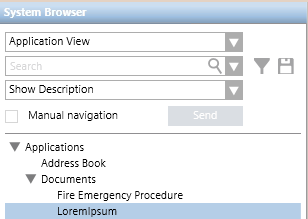
Document objects are located under Applications > Documents in Application View of System Browser. They may be further organized into subfolders under the main Documents folder.
Document Settings Fields
In Engineering mode, when you select a document object in System Browser, the Document Settings panel lets you create documents and associate objects.
In Operating mode when you select a document object in System Browser, you can click Edit to display the Document Settings panel which lets you modify the content of the document, and its associated objects.
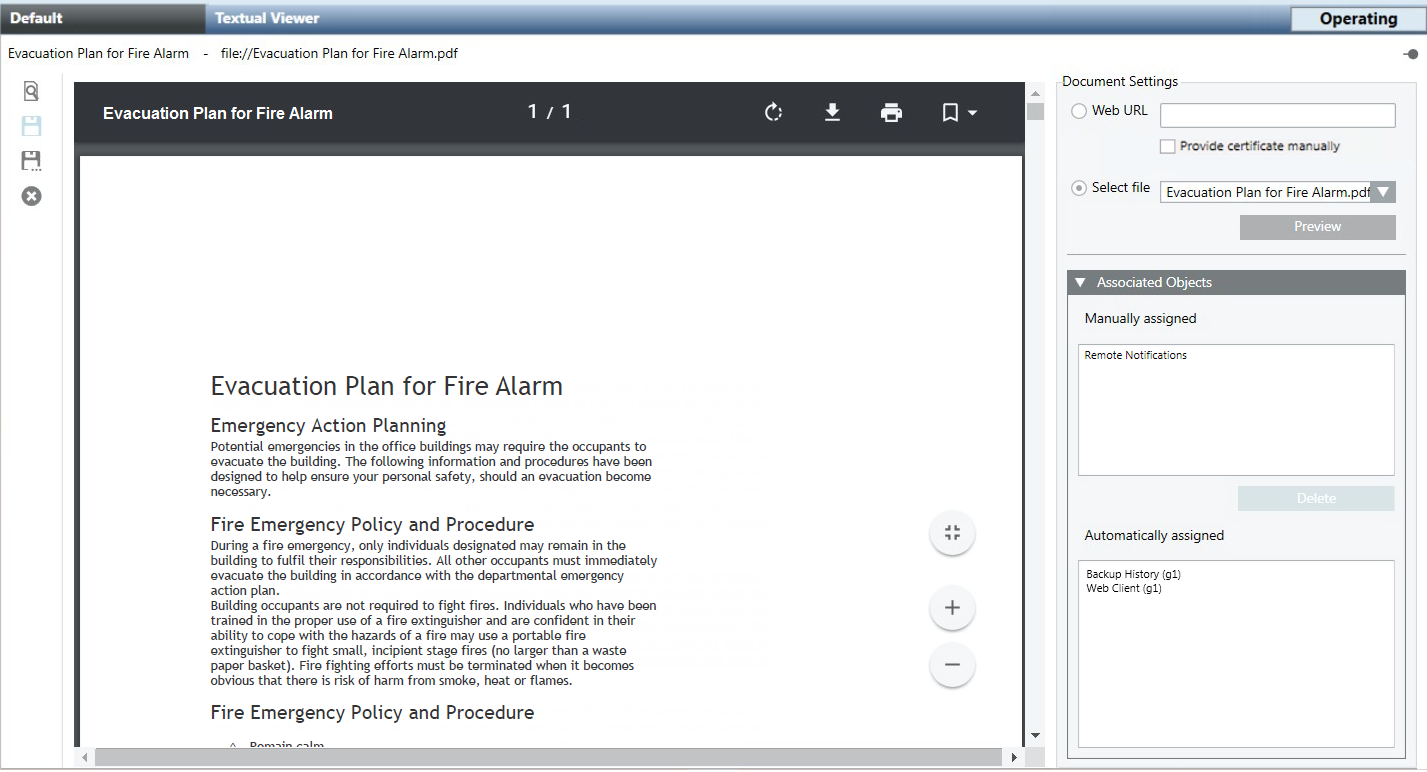
Web URL
This option sets a web link as the content of the document.
Provide certificate manually
This check box must be selected if a web link is set as content of the document and a connection is to be established with a website that requires a certificate.
Select file
This option sets a file (txt, pdf, rtf) as the content of the document. The drop-down list lets you choose from the files previously stored under the project documents folder at the following path on the Desigo CC server station: …\\GMSProjects\[Project]\documents.
Manually assigned
The current document will appear as a related item of all the objects listed in this field. You can drag-and-drop objects here from System Browser.
Automatically assigned
The current document will also appear as a related item of all the objects listed in this field. These links are created by the coverage area feature of Graphics Editor and you cannot remove them.
Documents Toolbar Controls
When you select a document object, a toolbar becomes available that lets you modify, save, duplicate or delete that document object.
When you select a documents folder in Engineering mode, a toolbar is available that lets you create/delete folders, or create new document objects.
| Selection in System Browser | |
Document Object [Operating or Engineering mode] | Documents Folder [Engineering mode] | |
New | n.a. | Create a new subfolder under the currently selected one. |
Save | Save the changes made to the current document object. | n.a. |
Save As | Save the currently selected document with a different name. You can use this to create a new document object from an existing one. | Create a new empty document object from scratch. |
Delete | Delete the currently selected document object. | Delete the currently selected documents folder, and any document objects contained inside it. (You cannot delete the main Documents folder.) |
Edit | Display the Document Settings panel, which lets you configure the content of the document (web link or file), and the associated system objects. | n.a. |
Operate | Close the Document Settings panel and go back to normal viewing of the document. | n.a. |


