View Options
Where You Can Find the Dialog Box
From the View menu, select Options.
What You Can Do with the Dialog Box
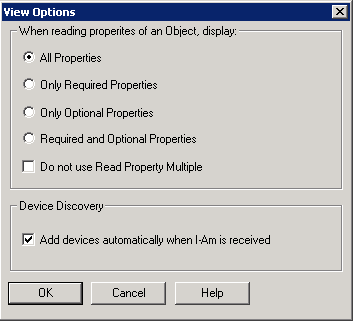
The View Options dialog box allows you to select the properties you want to display by default for an object.
|
Field/Button |
Description |
|
All Properties |
Select this check box to view all the associated properties of an object. |
|
Only Required Properties |
Select this check box to view only the required properties associated with an object. |
|
Only Optional Properties |
Select this check box to view only the optional properties of an object. |
|
Required and Optional Properties |
Select this check box to view the required and optional properties associated with an object. |
|
Do No Use Read Property Multiple |
Check this box to prevent multiple properties from being sent to a device in a single request. Instead, a series of individual property requests will be sent to a device. |
|
Add Devices Automatically When I-Am Is Received |
Check this box to find device and status information on existing BACnet networks. Adds devices automatically when an I-Am is received and tells the BACnet Object Browser to add a BACnet device into the system tree when a BACnet I-Am message is received from a device. |
|
OK |
Saves the information and exits the dialog box. |
|
Cancel |
Cancels the function and exits the dialog box. |
