Write Property
Where You Can Find the Dialog Box
From the system tree, select your BACnet device. The Write Property dialog box is available from many object types and property names.
- Object Types: Accumulator, Alert Enrollments, Analog Inputs, and others.
- Property Names: Apdu-timeout, application-software-version, backup-failure-timeout, and others.
What You Can Do with the Dialog Box
The Write Property dialog box allows you to view or edit the current object value of a selected property. If the property has an assigned priority array, the dialog displays a field for the priority. The BACnet Object Browser can edit many data types including Bit Strings, Booleans, Character Strings, Date Ranges, Enumeration, Reals, Signed, Unsigned, Weekly Schedules, Exception Schedules, Recipient Lists, Object Reference Lists, Action Lists, and Calendars.
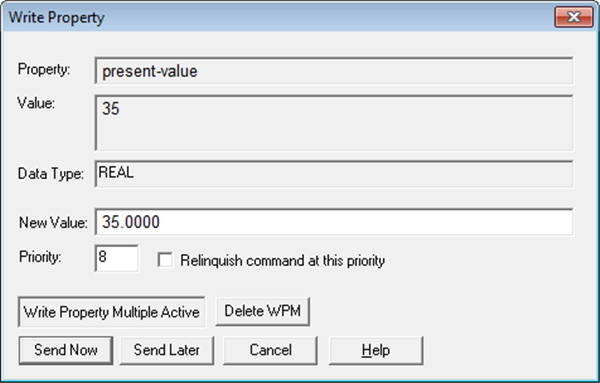
Field/Button | Description |
Property | Displays the current property type of the selected object. |
Value | Displays the current value of the selected object. |
Data Type | Displays the data type of the selected object. |
New Value | Allows you to enter or select a different value for the property. |
Priority | Allows you to enter a different priority level for the selected object, if desired. Check the Relinquish command at this priority check box if you want to relinquish a previously issued command at this priority. Click Send Now to command the new value. This updates the right pane in the BACnet Object Browser window. |
Write Property Mulitple Active | Indicates that you have edited a device property and selected the Send Later button. |
Delete WPM | Cancels the edits you have selected to send later. |
Send Now | Allows you to implement the edited property immediately. |
Send Later | Allows you to temporarily save changes you made to a property so that you can make changes to other device properties before implementing the entire batch by clicking the Send Now button. |
Cancel | Cancels the function and exits the dialog box. |
