Edit Exception Schedule
Where You Can Find the Dialog Box
From the system tree, expand your BACnet device. From the Schedules folder, select an object. In the Property Name column, right-click exception-schedule, and select Write Property.
What you can do with the Dialog Box
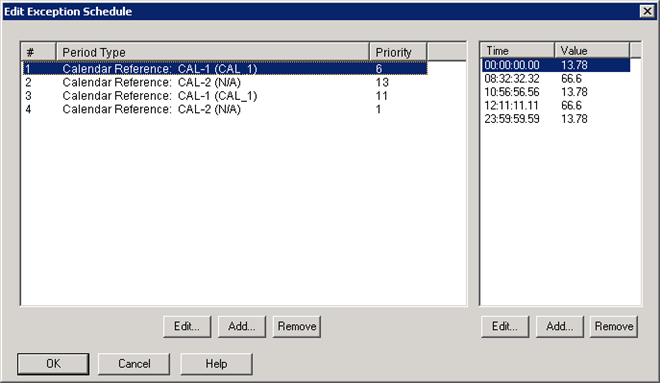
The Edit Exception Schedule dialog box allows you to add, modify, or remove Exception Schedule Events and to also add, modify, or remove entries in the command list of a selected event.
The dialog box contains two panes. The left pane displays instance or sequence #, Period Type—such as Calendar Reference or Calendar Entry—and Priority level. The right pane displays the Time and Value entries of the selected exception schedule event in the left pane. Within each pane, you can modify as desired with the Edit, Add, and Remove buttons.
|
Field/Button |
Description |
|
Edit Button |
Allows you to modify the selected event (Calendar Reference or Calendar entry) or schedule time for the event in the Special Event dialog box. |
|
Add Button |
Allows you to add a new event for new time and value entry. |
|
Remove Button |
Allows you to delete the selected event of the selected time-value. |
|
OK |
Confirms your modifications to a schedule and exits the dialog box. |
