Edit Actions
Where You Can Find the Dialog Box
From the system tree, expand your BACnet device. From the Commands folder, select an object. In the Property Name column, right-click action, and then select Write Property.
What you can do with the Dialog Box
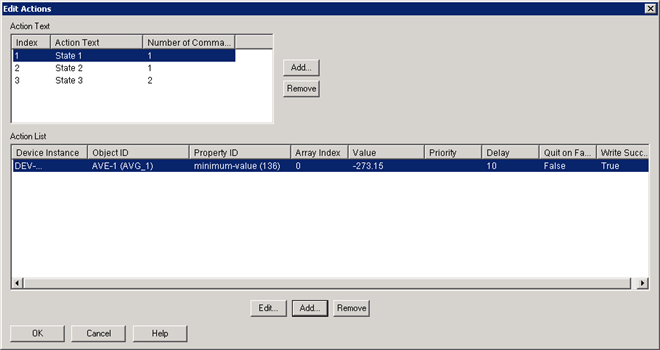
The Edit Actions dialog box contains two separate sections. The top section lists the Index Number, Action Text, and Number of Commands associated with the action list along with Add and Remove buttons specific to the section.
The bottom section details the action text command you have highlighted or selected in the top section. It lists the following information: Device Instance, Object ID, Property ID, Array Index, Value, Priority, Delay, Out on Fail, and Write Success along with Edit, Add, and Remove buttons specific to the section. You can edit, add, or remove any number of commands for each action text you have configured.
|
Field/Button |
Description |
|
Action Text |
|
|
Action List |
|
