Edit Action Element
Where You Can Find the Dialog Box
From the system tree, expand your BACnet device. From the Commands folder, select an object. In the Property Name column, right-click action and select Write Property. From the Edit Actions dialog box, click the Edit button.
What you can do with the Dialog Box
The Edit Action Element dialog box allows you to add, modify, or delete an action element from an Action list.
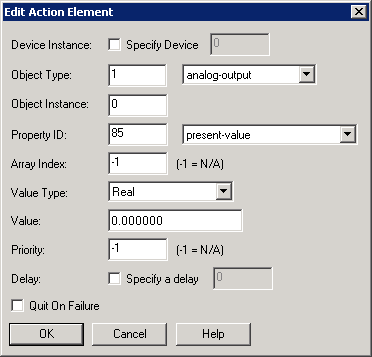
|
Field/Button |
Description |
|
Device Instance |
Allows you to modify the device instance number. |
|
Object Type |
Allows you to modify the number that defines the object type or click the drop-down arrow to select the type of value for the object. |
|
Object Instance |
Allows you to modify the number that defines the object instance. |
|
Property ID |
Allows you to modify the number that defines the property or click the drop-down arrow to select the type of value for the property. |
|
Array Index |
Allows you to modify a number other than the default. |
|
Value Type |
Allows you to modify the type of value. |
|
Value |
Allows you to modify the value of the object or point for the action text entry command. |
|
Priority |
Allows you to modify the priority of the command for the action text entry if it has a priority array. The default setting is -1, which implies it's not applicable. |
|
Delay |
Allows you to modify the amount of time to delay the command for the action text entry. |
|
Quit on Failure |
When checked, quits commanding if any commands fail. |
|
OK |
Confirms your modifications and exits the dialog box. |
