Import Points
Where You Can Find the Dialog Box
From the system tree, select your BACnet device. From the Services menu, select Import Points.
What You Can Do with the Dialog Box
The Import Points dialog box allows you to selectively import objects (points) from any BACnet devices into the Desigo CC database.
When you discover devices using BACnet Auto Disovery from the Desigo CC System Manager, all objects contained in any discovered device are added to the Desigo CC database by default. You can use the Import Points dialog box in the BACnet Object Browser to selectively import only a portion of the objects found in a BACnet device.
You might want to selectively import points for any of the following reasons:
- Because users aren't interested in all of the points in a device, especially if the device manufacturer includes a fixed number of points in a device that might not all be used.
- To reduce the number of objects in the Desigo CC database to meet system sizing requirements.
- To reduce the number of Desigo CC licenses required.
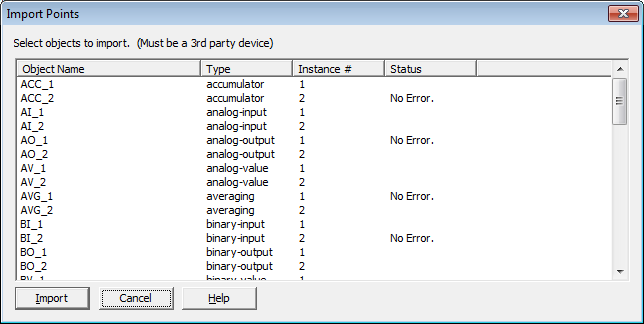
|
Field/Button |
Description |
|
Object Name |
Displays a list of the third-party device’s objects available for importing. |
|
Type |
Shows the object type. |
|
Instance # |
Displays the object instance numbers. |
|
Status |
Displays the status of the object after you click the Import button. |
|
Import |
Imports the selected objects into the System Manager database. |
|
Cancel |
Cancels any selections and exits the dialog box. |
