Macros Workspace
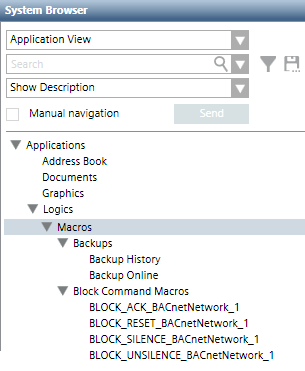
Macros are located under Applications > Logics > Macros in Application View of System Browser. They may be further organized into subfolders under the main Macros folder.
In Engineering mode, when you select an existing Macro or start configuring a new one, the Macro tab displays. This contains the list of the Macro instructions.
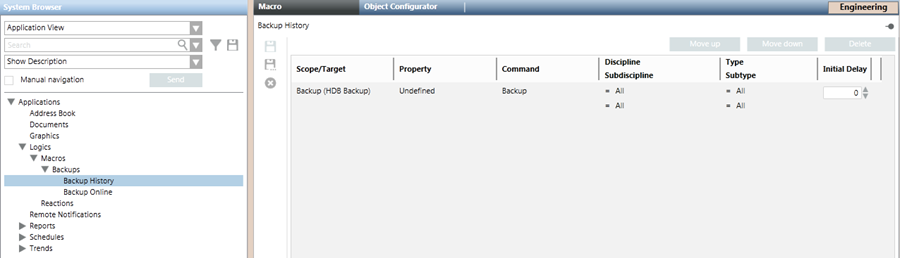
Each macro instruction occupies one row, and comprises a set of fields (such as Scope/Target, Property, Command) defining a command that will be issued when that instruction is executed.
- The instructions of a macro are executed in order from top to bottom.
- To change the order of the instructions, select a row and click Move up or Move down.
- To delete an instruction, select its row and click Delete.
- The Move Up, Move Down, and Delete commands are also available in the right-click menu for each row.
- To add a new instruction (row), drag-and-drop the desired target object from System Browser into the empty area inside the Macro tab. The Manual navigation check box must be selected to do this.
Scope/Target
Defines the target objects that will be affected by this instruction. To set this field, do one of the following:
- To add a new instruction (row), drag-and-drop (link) one or many scopes (set of objects) or one or many objects from System Browser into the empty area inside the Macro tab. This creates a new row with its Scope/Target field set based on the linked scopes/objects.
- To change the scope/target of an existing instruction (row), drag-and-drop a one or many objects or one or many scopes (set of objects) from System Browser into the Scope/Target field of an existing row. In a distributed systems environment, objects can belong to any of the available systems.

NOTE:
The target object of an instruction can be another macro. Recursive loops are detected and not allowed.
If you need to change the System Browser view to find the target object/scope, select the Manual navigation check box first. This will let you switch to a different view (for example, Management View) while still retaining the Macro tab.
Property
Defines the property of the target objects that will be affected by the instruction. After you select a Scope/Target, the Property drop-down list refreshes to include all the properties of the target objects that have an associated command. The drop-down list will also include Undefined if the object model has a command that was configured with an Alias. To set this field:
- From the Property drop-down list, select the property of the Scope/Target objects that you want to control with this instruction.
NOTE:
The property that will be affected by the instruction displays using the notation property description [property name] regardless of whether the target object has an associated function.
Command
Defines the command that will be issued to the selected target property. After you select a Property, the Command drop-down list refreshes to include the available commands for changing that property (for example, Change[Write], Reset, or Disable). (If the property is Undefined, the drop-down list will include all the commands that have an Alias. More specifically, it will include only the commands configured as Generic Display in the object model.) To set this field:
- From the Command drop-down list, select the command you want to issue to modify the selected property of the target objects. If the selected target object was another macro, you can specify a command that enables, disables, executes, or aborts that macro.
- Specify any additional parameters (for example, a Value) required by the selected command.
NOTE:
To specify a static (constant) value, enter it directly (for example, type in a number) or select it (for example, from a drop-down list or date picker). Note that if the property is of GmsBitString type, the value you can enter can be numeric only (either integer or real; check in the Operation tab the number of bits allowed).
To set a value equal to that of another property, drag-and-drop (link) an object onto the Value field from System Browser. The Value field will display the first compatible property of the linked object (or remain blank if there are no compatible properties). If necessary, use the drop-down list to select a different property from the one that was selected automatically. Alternatively, you can link a specific property from the Operation tab, or link the event source from Event List (or from the Event Detail bar). If the object dropped (linked) onto the Value field has an associated function, it will display using the notation object description@function property description [property name].
Discipline/Subdiscipline and Type/Subtype
You can filter the target objects that will be affected by the instruction based on:
- Discipline/Subdiscipline (for example, Security/Video)
- Type/Subtype (for example, Detector/Automatic)
In this case the command will be applied to the scope/target objects that also match the specified filter criteria.
Initial Delay
Defines an initial delay (in seconds, 0 to 9999) before this individual macro instruction is executed.
| Selection in System Browser [Engineering mode] | |
Macro object | Macros folder or subfolder | |
New | n.a. | Create a new subfolder under the currently selected one. |
Save | Save the changes made to the current macro. | n.a. |
Save As | Save the currently selected macro with a different name. You can use this to create a new macro from an existing one. | Create a new macro object. You must define at least one instruction before you can save. |
Delete | Delete the currently selected macro. | Delete the currently selected macros subfolder and any macros contained inside it. |


