To add the templates to the Advanced Reporting or Energy Reporting libraries: Select the Advanced Reporting Design folder in the Advanced Reporting or Energy Reporting libraries, if you want to add the templates to the Advanced Reporting or Energy Reporting libraries.
To add the templates to a different library: Select the Advanced Reporting templates folder in the respective library.
In the Template Configuration tab, open the Import expander.
Click Browse.
In the Browse for Folder dialog box, select the folder where the zipped files of the Advanced Reporting templates are located.
The Advanced Reporting templates from the selected folder are listed in the Import expander.
In the Import expander, select the files to be imported and click Import.
On import, the imported files are listed in the Templates expander.
The zipped files of the report templates are listed in the library.
Information
NOTE: If an XLS file is used in report templates, it must be equipped with sufficient access rights to prevent unauthorized access.
You have customized the library to which you want to add the reporting templates as per your customization levels.
In System Browser, select Management View.
Select Project > System Settings > Libraries.
Select the respective library to which you want to add the report templates and add a new library block. When adding the library block, ensure that you select the New Advanced Reporting Templates option from the list that displays when you click New. You can only add one Advanced Reporting templates folder below a libraries folder.
Enter values into the following fields: Version, Revision, Date, Notes.
Click Save.
The Create New Object dialog box displays.
Enter a name and description for the folder and click OK.
The Advanced Reporting Templates folder is added to the library.
Perform the following procedure to change the Web Services URL. For example, from unsecured to secured or vice versa.
You have completed the required configuration in SMC to change the WSI communication from unsecured to secured or vice versa.
In the Configuration Page - Advanced Reporting, click Details adjacent to the Home Webservice.
Click Delete, and thereafter click Add.
In the Parameter dialog box for Web Services configuration that displays, specify the new URL. For example, URL: http://localhost:8080/api/. Do any of the following:
Verify that the Get the System ID automatically checkbox is selected which in turn fetches the System ID of the system to which the Web Services belongs once you click Execute.
Uncheck the Get the System ID automatically checkbox and then type the System ID of the system to which the Web Services belongsin the System Number field and click Execute.
The Web Services URL displays with the status Done.
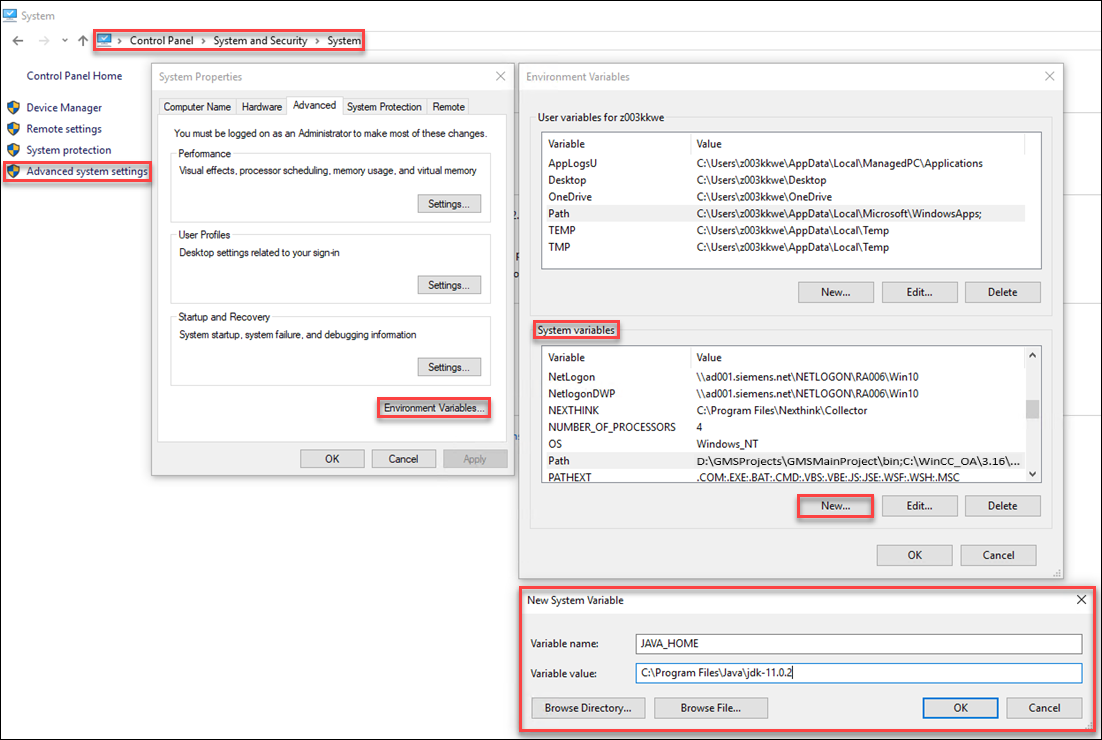
You must configure Open JDK 11.0.2 to work with advanced reports. For more information, see the ReadMe.txt file under …\InstallerDVD\InstallFiles\EM\Advanced_Reporting\AddSW on the software distribution.
In Search, search Control Panel.
Select System and Security > System.
Click Advanced system settings.
In the Advanced tab, select Environment Variables.
In the section System Variables, click New.
In the New System Variable dialog box that displays, specify the Variable name and Variable value. For example, Variable name: JAVA_HOME, Variable value: C:\Program Files\Java\jdk-11.0.2.
Click OK.
Close all remaining windows by clicking OK.
The Environment Variables is set to configure open JDK.

 .
.  .
.