User Administration Workspace
In the Users tab, you can:
- Create a new local or Windows user
- Change user account type
- Modify or delete existing users
- Assign user group to a user
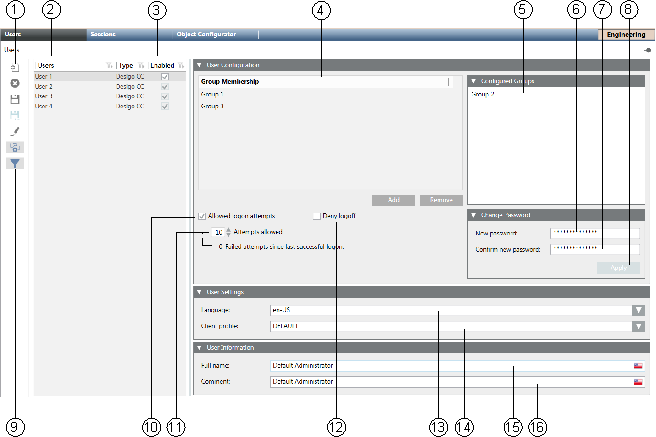
| Name | Description |
1 | Toolbar | Displays the icons for operations such as Add, Delete or Save. |
2 | Users | Lists all the defined users with access to Desigo CC. A user name is used to log on to Desigo CC. In a distributed system, the check box in the Global column indicates the type of user. |
3 | Enabled | When selected, a user can operate Desigo CC (default setting). Disabled users cannot log on to Desigo CC. |
4 | Group membership | Displays the user group assignment to a user. |
5 | Configured groups | Displays user groups that can be assigned a user. |
6 | New password | Enter a new user password. Desigo CC has no password policy for a local account. |
7 | Confirm new password | Confirm the new password. |
8 | Apply | Saves a new password immediately. The Apply button applies only to a changed password, and is available only if the confirmation matches the password. |
9 | User with no groups | Shows all users with no user group assigned. Correct user configuration requires for each user to be assigned to a user group. |
10 | Attempts allowed | Allows you to specify how many times a user can attempt to log on to Desigo CC. |
11 | Failed attempts since last successful logon | The number entered determines the number of wrong logons that are available to a user. A user is locked from logging on to Desigo CC for 5 minutes when the number of attempts is exceeded. |
12 | Deny Logoff | When selected, a user cannot exit the management station. |
13 | Language | Defines the language displayed in the user dialog boxes for Desigo CC. |
14 | Client Profile | Defines display of Desigo CC applications on the management station (affecting Summary Bar lamps, Event List, Event Detail Bar, and so on). For more information, see the Client Profile section. |
15 | Full Name | Descriptive user name, displayed in the Summary bar. |
16 | Comment | Additional information to describe a user, for example, office number. |
Client Profile
Various profiles are available for the individual disciplines or applications. The list of available client profiles depends on the specific installation. For detailed information, refer to the Stations Configuration Parameters section.

NOTE 1:
The following user activities are recorded in Desigo CC :
- Creating or deleting a user
- Changing a password
- Changing a user (without detail information on the change).
NOTE 2:
As the default setting, the user DefaultAdmin is assigned to the DefaultAdmins user group, and DefaultUser is assigned to the DefaultUsers group. Neither can be deleted. Ensure that you remember the password at a later date. Desigo CC provides no backdoor for forgotten passwords.
Create an administrator users group and an administrator on site, when handing over a project to the customer (Disabling DefaultAdmin user).
