RENO Messages
In Operating mode, when you work with remote notifications, the RENO Messages tab displays.
Remote Notifications Message Status List
The system provides a Message Status list where operators can review all the remote notifications sent out (whether alarm-triggered or operator-issued), and check on the progress, details, and outcome of each one. From here, it is also possible to resend notifications, and if desired abort or halt the escalation of ongoing ones.
Accessing the Message Status List
In some cases the message status list displays automatically, for example, after you send an operator-issued notification. You can also access it manually in a variety of ways.
Cases where the Message Status list opens automatically:
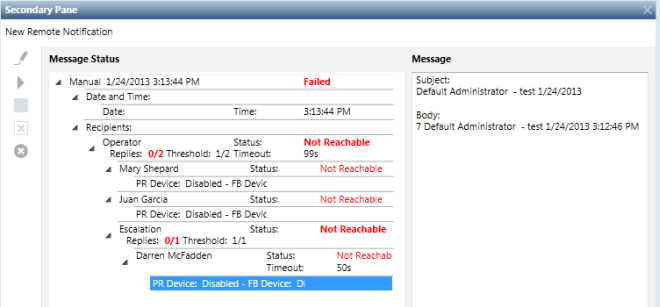
- After sending an operator-issued remote notification the Message Status list displays in the Secondary pane.
- When executing the RENO step in an assisted treatment procedure the Message Status list displays in the Assisted Treatment window.
Ways to manually access the Message Status list (System Manager must be in Operating mode):
- View all remote notification sent:
- In System Browser, select Application View.
- Select Applications > Remote Notifications.
- View all operator-issued (new) remote notifications sent:
- In System Browser, select Management View.
- Select Project > System Settings > Related Items Templates > New Remote Notification.
- View the remote notifications triggered by a point currently in alarm:
- Select the point in alarm in System Browser. (You can do this by double-clicking the event source in the event descriptor of the alarm that triggered the notification.)
Information Provided in the Message Status List
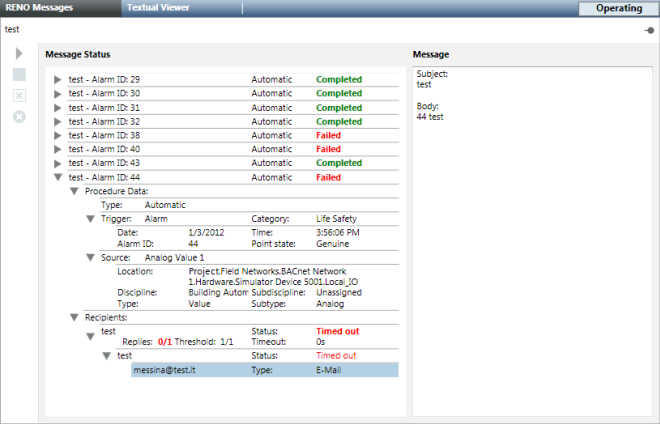
In the Message Status list, each notification displays on a separate (expandable) row. The topmost row shows a compact notification summary with the most important information about the notification. See the tables below for a detailed key to the information provided in the Message Status panel.
Compact Notification Summary | |
For new (operator-issued) notifications: For alarm-triggered notifications: | |
Type of sending | For alarm-triggered notifications, can be automatic or manual depending on configuration. For operator-issued notifications is always manual. |
Date and time | Full date and time when the notification was sent. |
Name | Name assigned to the alarm-triggered notification in the System Browser tree. |
Alarm ID | Event ID of the alarm that triggered the notification. |
Overall RENO outcome |
|
Procedure Data Summary | |
Type | Type of message sending (Manual/Automatic). |
Starting in | For automatic notifications, the time left before the remote notification message is sent (delay). |
Trigger | Details about the condition that triggered the notification: Trigger: Type of trigger (for example, Alarm) Category: Event category Date: Date the alarm occurred Time: time the alarm occurred Alarm ID: Event identifier (for example, Alarm ID 44) Point state: Point state that triggered the notification ( |
Source | Details about the source of the event that triggered the notification: Source: Field object in alarm Location: Path of the field object in the System Browser tree) Discipline: Event discipline Sub-discipline Type Sub-type |
Recipients Summary | |
The first level of the recipients’ summary shows a list of the recipient groups configured for the remote notification. You can expand each recipient group to see further details about that group and its members. | |
Information shown for each recipient group: | |
Group name | Name of the recipient group (for example, supervisors or administrators), selected from system address book, to which the notification was addressed. |
Group replies | How many group members have replied so far to the notification. |
Group threshold | The minimum required number of replies required for this group. For example, Replies: 1/2 means that at least one of the two recipients belonging to the group must reply for this message to be considered acknowledged. |
Group timeout | The time limit for receiving the required number of replies from this group. ( |
Group Status | Notification status of the group as a whole (see Status, below, for a key to the possible values). |
List of group members | List of the individual contacts in the group. You can expand each individual contact to display that person‘s:
|
Escalation | An additional summary that displays only if the group has escalation rules. See below for details. |
Escalation Summary | |
The escalation summary under a group displays only if the group has escalation rules configured. Information shown for the group’s escalation: | |
Escalation replies | How many escalation recipients have replied within their individual timeout. |
Escalation threshold | The minimum required number of replies required from escalation recipients. |
Escalation Status | Outcome of the escalation as a whole (see Status, below, for a key to possible values). |
List of escalation recipients | List of the individual contacts configured as escalation recipients for this group. You can expand each contact to see that person’s:
Click a PR or FB device to see the actual message sent in the panel on the right. |
Status | |
Applies to group status, escalation status, and notification status of an individual contact. | |
| The remote notification has not started yet. |
| The remote notification is in progress. |
| The message has been sent to the designated recipients and the system is awaiting a reply (the timeout for a response has not yet elapsed). |
| The designated recipients replied within the timeout. In the case of a group it mean that the group reached its response threshold within the timeout. |
| The system failed to send the message to both the preferred and fallback device. |
| The system did not receive the replies at all. In particular:
|
| The operator stopped the remote notification. |
| The operator halted the escalation of the remote notification. |
RENO Messages Toolbar Controls
In Operating mode, when you work with remote notifications, the RENO Messages toolbar is available. It allows you to start, stop, and clear remote notifications.
| Alarm-based notifications | New notifications |
Start RENO procedure | Start sending or re-sending the currently selected remote notification. The icon is dimmed while sending is in progress. | Start re-sending the new (operator-issued) notification. |
Stop RENO procedure | Stop the remote notification that is currently in progress. If successful, the remote notification overall outcome becomes Notifications can only be stopped if they are configured to be stopped. Remote notifications with manual sending can be stopped while they are in progress. Notifications with automatic sending can only be stopped during the time delay before they start. | Stop monitoring the message status of new (operator-issued) notification. |
Stop RENO procedure escalation | Stop the escalation for the currently selected recipient group: If the group does not reach its threshold of required responses, any escalation does not start. The status of the groups and recipients involved becomes If there is more than one recipient group with an escalation list, to stop all escalations you must select each group in turn and repeat this step to disable its escalation. This command is not available if an escalation has already started. | |
Clear manual procedure | n.a. | Only available for new (operator-issued) remote notifications in the Secondary pane. Remove the selected notification from the list. |
Back to configuration | n.a | Only available for new (operator-issued). Go back and compose another message. |


Message Status Summary
Situation | Status | ||
Remote notification outcome | Groups | Recipients | |
The remote notification is initialized, but has not yet started. |
| — | — |
The remote notification is automatic and time-delayed, and the operator stops it before it starts. |
|
|
|
The remote notification has started (regardless of whether it is automatic or manual). Some recipients have replied and other replies are pending (the system is still waiting for them to reply because they have not yet timed out). No group has yet reached its response threshold. No group timeout has yet expired. |
|
|
|
The system is evaluating the final outcome of the notification. No escalation for a group is pending. |
|
|
|
Some recipients have replied and other replies are pending. An escalation threshold (either first or second level) for a group has been reached within the timeout. Other escalation groups are still pending. |
|
|
|
Some recipients have replied, some are still pending, and others have timed out. The groups' thresholds have not been reached. The groups' timeouts are expired. Some second-level recipients did not reply and it is no longer possible to reach the groups thresholds. Other escalation groups are still pending. |
|
|
|
No replies are required for a group and its recipients. |
|
|
|
The operator has stopped the manual remote notification. The status of the recipients that replied does not change. The status of the recipients that did not reply within the timeout does not change. The status of the recipients that replied after the remote notification is aborted changes to |
|
|
|
No replies are required for a group and the related recipients. Some recipients have replied; other recipients have timed out, and others still need to reply. All the groups have reached their response thresholds. |
|
|
|
Some recipients have replied, other recipients have timed out, and others need to reply. At least one group did not reach its threshold within the timeout. No escalation group is pending. No replies are required for a group and its recipients. |
|
|
|
The system successfully sent at least one message to the mail server but none of the recipient groups reached their reply threshold (different from 0). No escalation group is pending. |
|
|
|
For any reason, the system fails in sending all the messages to the mail server. |
|
|
|
One or more recipients have replied after the timeout. |
|
|
|
