The Windows operating system can interact with SNMP by providing data about computer hardware, software status, and statistics. Such information can be used in Desigo CC for monitoring tasks.
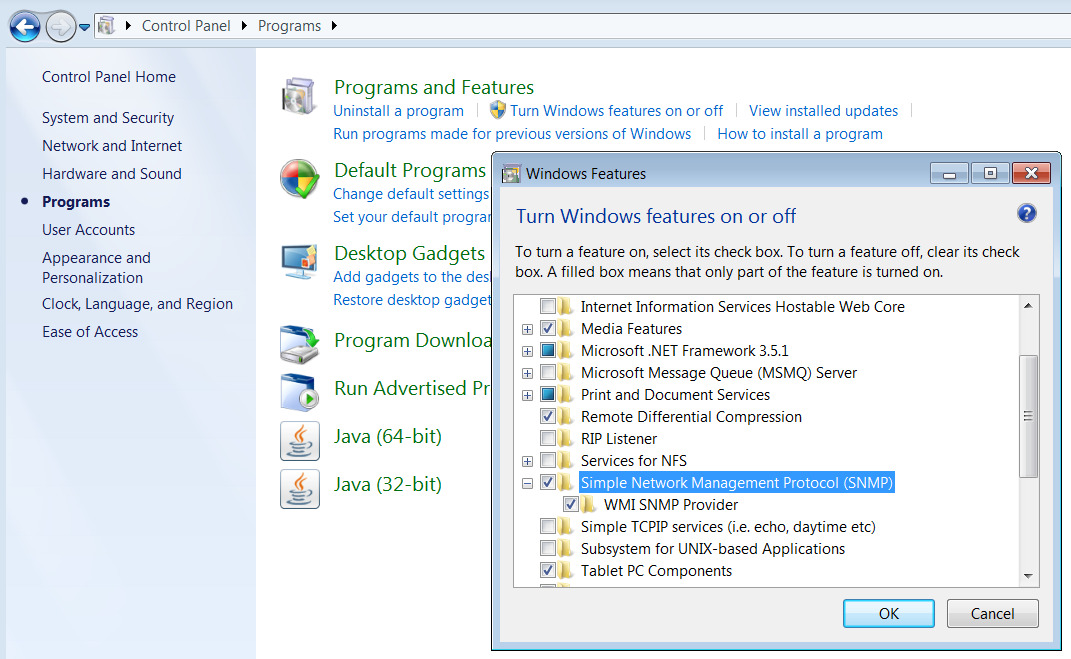
Open the Windows Control Panel and select Programs.
Select Turn Windows features on or off.
If the User Account Control authorization window displays, click Yes to proceed.
The Windows Features dialog box displays.
In the list that displays, locate and select the Simple Network Management Protocol (SNMP) check box as well as the related sub-nodes. Then, click OK.
In a few seconds, Windows installs the SNMP service.
Close the Control Panel.
NOTE: This procedure may differ, depending on the Windows operating system used. In case of doubt, refer to the Windows documentation about installing SNMP.
Click the Windows Start button, then right-click Computer and select Manage.
If the User Account Control authorization window displays; click Yes to proceed.
The Computer Management window displays.
Expand the Services and Applications folder and click Services.
The Services list displays.
Locate and right-click the SNMP Service, then select Properties.
The SNMP Service Properties window displays.
Select the Agent tab, then select the Physical check-box, and click Apply.
Select the Security tab.
In the Accepted community names section, click Add.
The SNMP Service Configuration dialog box displays.
Enter public (lower case) in the Community Name field, select the required Community rights, and click Add. NOTE
Verify that the Accept SNMP packets from any host option is enabled. Then click OK.
The Services list displays again.
Right-click and Restart the SNMP Service.
Make sure that the SNMP Service Status shows Started and the Start-up type is Automatic.
Close the Computer Management window.
NOTE: This procedure may differ, depending on the Windows operating system used. In case of doubt, refer to the Windows documentation about configuring SNMP.