Layers in a Graphic
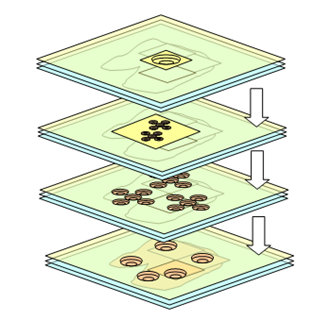
Layers are the building blocks of large graphics representing equipment, floors, buildings, facilities and entire campuses. Each layer of a graphic represents a grouping of graphical elements or system objects and has a unique name. Layers are combined and organized in different ways to create all the required views at a page level.
Each time you create a new graphic, a default layer is automatically generated and displays in the Element Tree view. When you select a layer from the Element Tree, the layer properties also display in the Properties view. Anytime you add or import an element or image, you are adding it to the active layer. Additionally, every time you create a new layer, it is automatically added to the Depths view, as a column entry that can be associated with a specific depth.
Grouping Layers
To add more complexity to a graphic representing a facility, equipment, building for example, you can add further detail by also associating a grouping of layers with a depth.
Alarm Category and Discipline Properties
Layers can be assigned to an alarm category and also associated to pre-defined disciplines. This facilitates dynamic filtering of layers when a graphic is viewed in the Graphics Viewer. If you do not want to assign a layer to a discipline, you can select the Any option, and the layer always displays. The discipline for a layer is assigned in the Properties view, under the Layer properties.
Layer Visibility Range
Layers can have a visibility range so that they are only visible within a specific zoom factor range. As you zoom in or out, the layer will become visible depending on the current zoom factor.
Semi-Transparent Layers
Each layer can have a background color associated with it. The color of the background is chosen using the Background property of the Colors category. If a semi-transparent color is used, the elements on the layer are visible. If a non-transparent color is used, the elements on the layer are not visible.
