Video Properties and Commands

You can check video properties and issue control commands manually, from the Contextual pane, or using automated mechanisms such as macros/reactions.


Global Video Control Commands

When you select the main Video folder in System Browser, the Extended Operation tab provides you with the connection status and various commands relating to the video system as a whole.
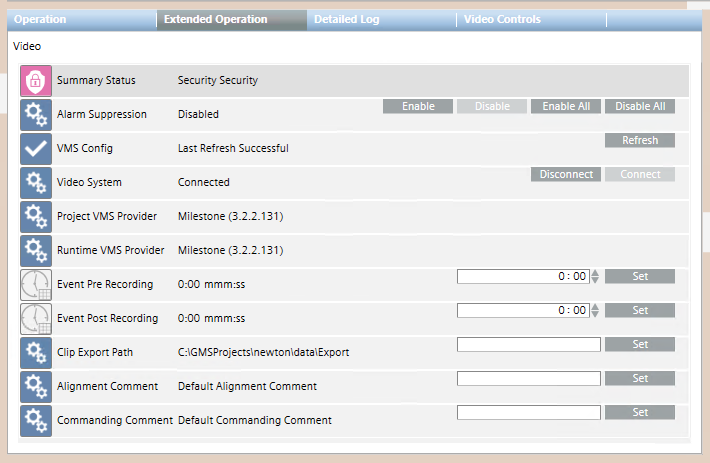
Properties and Commands of Main Video Folder in the Extended Operation Tab

Global Video Properties and Commands

Action

Manual Execution

Execution in Macros/Reactions

Connect to the VMS

  • On the Video System property, click Connect.
  • Configure: Video object > Video System property > Connect command.

Disconnect from the VMS

  • On the the Video System property, click Disconnect..
  • Configure: Video object > Video System property > Disconnect command.

Acquire changes to the camera configuration made in the VMS

  • On the VMS Config property, click Refresh.
  • Configure: Video object > VMS Config property > Refresh command.

Set the location on disk for storing exported video clips

  • On the Clip Export Path property, enter the destination folder path and click Set.
  • Configure Video object > Clip Export Path property > Set command.
    Specify full folder path as a parameter.

Set default time recording starts before an event

(see note below)

  • On the Event Pre Recording property, enter the time (mmm:ss) and click Set.
    Max time is 600:00 (10 hours).
  • Not available

Set default time recording continues after an event

(see note below)

  • On the Event Post Recording property, enter the time (mmm:ss) and click Set.
    Max time is 600:00 (10 hours).
  • Not available

Check the video provider alignment

  • Check that the following two properties match:
    • Project VMS Provider: The video provider set for the project.
    • Runtime VMS Provider: The currently active video provider.
  • Not available


Event Pre and Post Recording Times

The Pre Recording and Post Recording settings are used for event recordings in operating procedures. They define the default duration of the automatic video recordings taken in case of alarms. You can modify these defaults in the 7 – Define the Cameras Displayed During the Video Step.

NOTE: The Pre Recording and Post Recording values must not exceed the corresponding Set Up Custom Rules for Event Recording, which define the actual duration of the event video recordings. Having the same values in both environments will result in a perfect consistency between event video recordings and related event tags.


Camera Control Commands

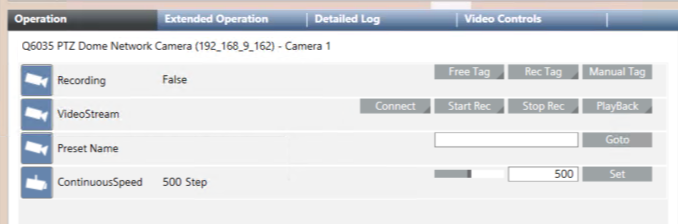
When you select a camera in System Browser or click a monitor in the video view, properties and commands for that camera display in the Operation and Extended Operation tabs.
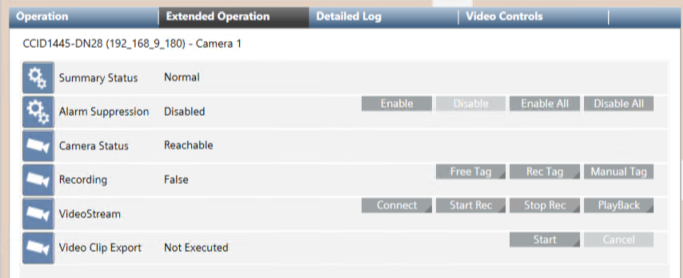
Camera Properties and Commands in Extended Operation Tab
Properties and Commands of PTZ Camera in Operation Tab

Camera Properties and Commands

Action

Manual Execution

Execution in Macros/Reactions

Connect a camera to a monitor


  • Drag-and-drop a camera onto a monitor in the video view or onto the corresponding monitor icon of the video wall.
  • Select the camera and, on the VideoStream property, click Connect and enter the exact monitor description (case-sensitive) as a parameter.
  • Configure: camera object > VideoStream property > Connect command. Specify the exact monitor description as a parameter.


NOTE: Disconnecting the camera requires issuing a command to the monitor object. See Monitor and Monitor Group Commands, below.

Check the status of a camera

  • Select the camera and check the Camera Status property:
    - Reachable
    - Fault
    - Disabled (the camera is connected but was disabled in the VMS)
  • Read the value of the Camera Status Property of camera objects.

Move a PTZ camera to a preset position

  • Select the camera and, on the PresetName property, specify the position (case-sensitive) and click Goto.
  • In the PTZ panel, select the preset from the drop-down list or click one of the P1-P6 buttons.
  • Configure: camera object > PresetName property > Goto command.
    Specify the exact preset description as a parameter.

Set the motion speed of a PTZ camera

  • Select the camera and, on the Continuous Speed property, enter the desired speed (steps) and click Set.
  • Not available.

Export a recording to a file

  • Select the camera and, on the Video Clip Export property, click Start. Specify the start and end dates/times, and click Send to export the video clip.
  • Configure: camera object > Video Clip Export property > Start command.
    Specify the start and end dates/times as parameters.

Tag + comment the current point in the video recording

or

Create video clip with tag + comment at current point – see note below


(Free Tag)

  • Select the camera and, on the Recording property, click Free Tag, enter a comment and click Send.
  • Configure: camera object > Recording property > Free Tag command.
    Specify the comment text as a parameter.

Tag + comment a span of time around the current point in the video recording

or

Create video clip with tag + comment on span of time around current point – see note below


(Rec Tag)

  • Select the camera and, on the Recording property, click Rec Tag. Set the Pre-rec and Post-rec offsets that define the span of time, and enter a comment.

    TIP: The Pre-rec and Post-rec values should match the corresponding VMS buffering options (Bookmark Rule), which define the actual duration of the video recordings. Having the same values in both environments will result in a perfect consistency between recorded videos and related event tags.
  • Configure: camera object> Recording property > Event Tag command.
    Specify the comment text, pre-rec and post-rec times as parameters.

Tag the current point in the video recording

or

Create video clip with tag at current point – see note below.

(Manual Tag)

  • Select the camera and, on the Recording property, click Manual Tag.
  • Select the monitor where images from the camera are streaming and click .
  • Configure: camera object > Recording property > Manual Tag command.

Start recording

  • Select the camera and, on the VideoStream property, click Start Rec and specify the recording type as a parameter:
    • Continuous recording (24h, see notes below)
    • Event video recording (fixed duration based on buffer settings in VMS)
    • Manual recording (a subsequent Stop Rec is required)
  • Configure: camera object > VideoStream property > Start Rec command.

    Specify the recording type as a parameter.

Stop recording

  • Select the camera and, on the VideoStream property, click Stop Rec to stop the recording, whose type (Continuous, Event, Manual) must be correctly specified as a parameter.
  • Configure: camera object > VideoStream property > Stop Rec command.
    Specify the recording type as a parameter.

Play back a recording

  • Select the camera and, on the VideoStream property, click PlayBack. Specify the parameters listed below, then click Send to search for and play back the recording.
    • Start Time and End Time
    • Speed (replay speed, ranging from-8 to +8, with 0 being the normal speed)
    • Trigger Time (start offset time)
    • Play Time
    • Monitor (where to start the playback if a recording is found, specify the exact monitor description)
  • Configure: camera object > VideoStream property > PlayBack command.

    Specify the parameters listed at left


Information

Tag Commands
- If video recording is already active, the tag commands simply add the tag to the recording in progress.

- If the camera is not currently recording, depending on configuration the tag commands may automatically start the recording, creating a video clip whose duration depends on the VMS buffer settings. Refer to Milestone / Siveillance VMS Reference or check with your system administrator whether a separate Start Rec command is required in your system.


NOTICE

Continuous Recording

On some VMS models, the command Start Rec > Continuous is not available (it has no effect). In such cases, you may use the Start Rec > Manual to start a continuous recording, taking into account that the recording will stop and not start again automatically after a VMS system reboot.
For a more robust solution, check with your system administrator to find out which direct commands are available in the VMS software and how to use them.


Camera Group Commands

When you select a camera group in System Browser properties and commands for that camera group display in the Operation and Extended Operation tabs.
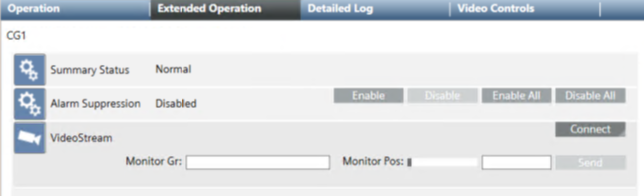
Camera Group Properties and Commands

Camera Group Commands

Action

Manual Execution

Execution in Macros/Reactions

Connect the camera group to a monitor group


.

  • Drag-and-drop a camera group onto a monitor in the video view. The cameras will populate the monitors starting from the one you drag-and-dropped on..
  • Select the camera group and,on the VideoStream property, click Connect. Enter the below parameters and click Send:
    • Monitor Gr: exact monitor group description (case-sensitive)
    • Monitor Pos: position starting from which you want to populate the monitors.
  • Configure: camera group object > VideoStream property > Connect command.
    Specify the exact monitor group description as a 1st parameter and the monitor position where you want to start as a 2nd parameter.

Note: to disconnect the cameras requires issuing a command to the monitor or monitor group objects. See Monitor and Monitor Group Commands, below

Monitor and Monitor Group Commands

When you select a monitor or monitor group in System Browser properties and commands display in the Operation and Extended Operation tabs.
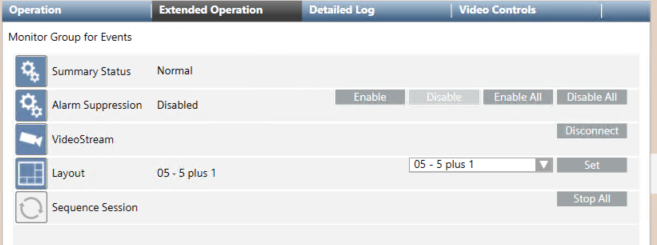
Monitor Group Properties and Commands


Monitor and Monitor Group Commands

Action

Manual Execution

Execution in Macros/Reactions

Disconnect the selected monitor or monitor group from the connected cameras

  • In the video view, select a monitor and click X to disconnect its video source.
  • In System Browser, select a monitor or monitor group and, on the VideoStream property, click Disconnect.
  • .Configure: monitor or monitor group object > VideoStream property > Disconnect command.
    No parameter is required.

    For monitors, this disconnects the single camera. For monitor groups, it disconnects all cameras from the group

Stop all running sequences on the selected monitor or monitor group

  • In the video view, select one of the monitors occupied by the sequence and click or . See Display a Video Sequence.
  • In System Browser, select the monitor or monitor group and, on the Sequence Session property, click Stop All.
  • Configure: monitor or monitor group object > Sequence Session property > Stop All command.

Set the layout associated with the selected monitor group – see note below..

  • Select the monitor group and display its video streams (Default or Video tab). Use the toolbar to set the layout of the monitor group.
  • Select the monitor group and, on the Layout property, select a layout from the drop-down list and click Set.
  • Configure: monitor group object > Layout property > Set command.
    Specify the layout as a parameter.


Layout of a Monitor Group

The layout selected here does not affect the station layout in the video view. It is applied when the monitor group object is selected directly. For details see Monitors and Monitor Groups Reference.


Sequence Commands

When you select a sequence in System Browser, properties and commands display in the Operation and Extended Operation tabs
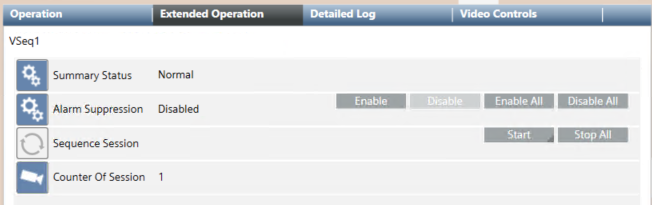
Sequence Properties and Commands

The list of sequence commands includes:

  • Start, to start the selected sequence on a monitor. This command activates a sequence session on that monitor. You can start multiple sessions of the same sequence on different monitors.
  • Stop All, to stop all running sessions of the selected sequence. Note that the number of active sessions is indicated by the Counter of Sessions property in the Extended Operation tab.

Sequence Commands

Action

Manual Execution

Execution in Macros/Reactions

Start a sequence


Note: You can start multiple sessions of the same sequence on different monitors

  • Drag-and-drop a sequence onto a monitor in the video view or onto the corresponding monitor icon of the video wall
  • Select the sequence and, on the Sequence Session property, click Start. Enter the below parameters and click Send:
    • Monitor Gr: exact monitor group description (case-sensitive)
    • Monitor Pos: position in starting from which you want to play the sequence.
  • Configure: sequence object > Sequence Session property > Start command.
    Specify the exact monitor group description and the monitor position in the group.

Check how many sessions of a sequence are playing

  • Select the sequence and, in the Extended Operation tab, the Counter of Sessions property indicates how many sessions of that sequence are currently active.
  • On sequence object, value of Counter of Sessions property.

Stop all sessions of a sequence

  • Press the ⊚ symbols in the corresponding monitor icon of the video wall.
  • Select the sequence and, on the Sequence Session property, click Stop All..
  • Configure: sequence object > Sequence Session property > Stop All command.
VMS Trigger Commands

When you select a VMS trigger in System Browser the command for activating that trigger displays in the Operation and Extended Operation tabs.
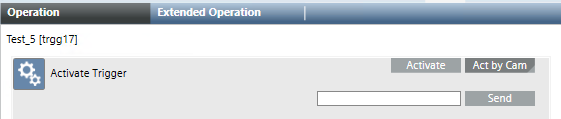
Trigger Activation Command


Trigger Activation Commands

Action

Manual Execution

Automated Execution (Macros/Reactions or Scripts)

Activate the selected trigger to execute an action in the VMS

  • Select a trigger and, on the Activate Trigger property, do one of the following:
    - Click Activate
    - Click Act by Cam, enter one or more camera names (separated by commas), and click Send.
  • In a graphic, click the trigger symbol. This sends an Activate command (without camera parameter).
  • Configure: trigger object > Activate Trigger property > Activate or Activate by Cam command.
    For Activate by Cam specify camera names (separated by commas) as parameter.
