Triggering VMS Actions
From Desigo CC, you can trigger actions on the connected Milestone/Siveillance video management system (VMS). For example, these may include:
- Display multiple cameras on external VMS monitors not managed from within Desigo CC.
- Switch a camera to a video player in the VMS client.
- Arm/Unarm a specific device in the VMS that is not supported in Desigo CC.
- Transfer parameters to a rule/macro in the VMS
- Hand over event information to be used in VMS
The available triggers are those that are configured in the VMS as ‘user defined events’.
Activate a Trigger from the Contextual Pane
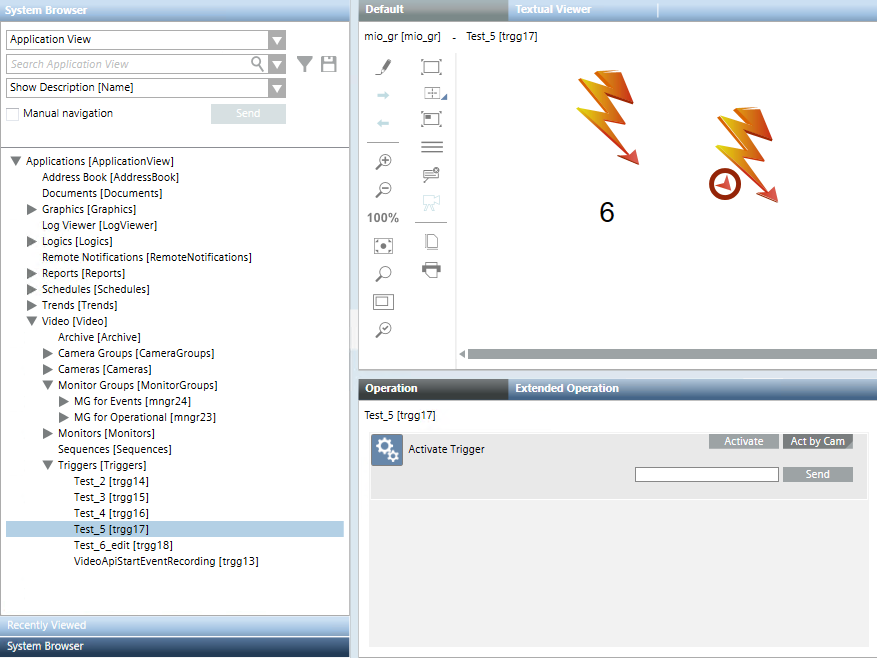
- In System Browser, select Applications > Video > Triggers > [trigger].
- In the Operation tab, the Activate Trigger property provides commands for executing that action in the VMS.
- For a trigger without a parameter, click Activate.
- For a trigger that requires a parameter:
a. Click Act by Cam.
b. Enter one or more camera names in the field.
NOTE: Multiple camera names must be comma separated, for example:src1, src2, src3. If one of the entered camera names is incorrect (a source with that name does not exist) the command fails and is not executed for any camera.
c. Click Send.
Activate a Trigger from a Graphic
In graphics, triggers are represented by a lightning bolt symbol.
- Do one of the following:
- Right-click the trigger symbol to send the Activate or Act by Cam command as you would from the Contextual pane.
- Click the red circled arrow in the symbol to directly Activate the trigger
