Handling Alarm Suppression for System Objects
When alarm suppression is enabled for an object or subtree, any related events do not display on the management station. All consequences of such events on the management station, as for example reactions, remote notifications, and so on, are suppressed as well. However, value and status changes of the affected objects are still updated and logged in the history.
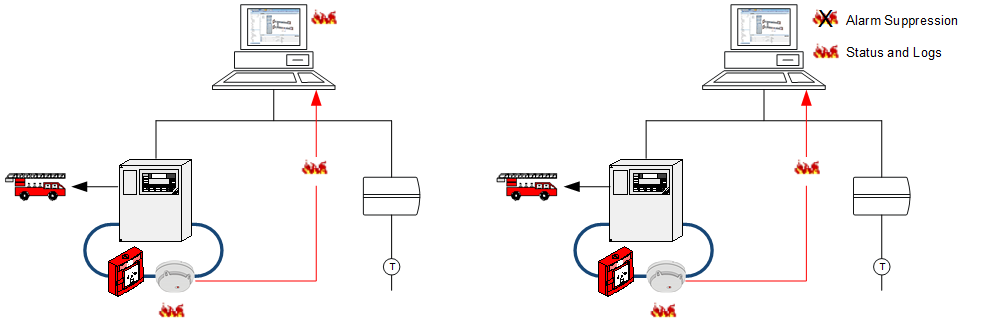

The alarm suppression feature disables the display of events concerning the affected object or subtree. The alarm functionality (for example, the fire detection system) is not affected. Consequently, any incoming alarms are still transmitted to the fire department.
To block the alarm transmission to the fire department, you must exclude the fire detection by disabling the area, zone, or fire detector on the panel as follows:
- In System Browser, select the fire object.
- In the Operation tab, next to the property Mode, click Disable.
Prerequisites:
- You are authorized to handle alarm suppression.
- One or more system objects support the alarm suppression feature.
NOTE: Due to some restrictions depending on specific countries regulations, in some configurations the alarm suppression feature can be disabled. In such cases, the alarm suppression indicator does not display on the Summary bar, and executing the following procedures has no effect.
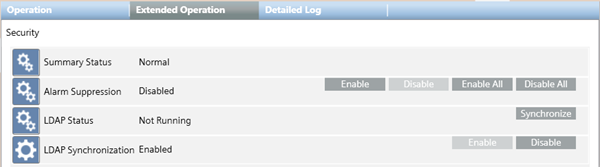
- In System Browser, select the system object for which you want to enable alarm suppression.
- Click the Extended Operation tab.
- Next to the Alarm Suppression property, click Enable.
- Alarm suppression is enabled for the selected object.
NOTE 1: If the selected object is in alarm when you enable alarm suppression its events remain visible in the Summary bar and Event List. Alarm suppression will activate on the next events that occur.
NOTE 2: The following error message displays if the alarm suppression feature is not available for your configuration:Enable failed.
- In System Browser, select the system object for which you want to enable alarm suppression.
- Click the Extended Operation tab.
- Next to the Alarm Suppression property, click Enable All.
- The alarm suppression is enabled for the selected object and the subtree to which it belongs.
NOTE 1: If any object in the subtree is in alarm when you enable the alarm suppression, its events remain visible in the Summary bar and Event List. The alarm suppression will activate on the next events that occur.
NOTE 2: The following error message displays if the alarm suppression feature is not available for your configuration:Enable failed.
- In System Browser, select the system object with alarm suppression enabled.
- Click the Extended Operation tab.
- Next to the Alarm Suppression property, click Disable.
- Alarm suppression is disabled for the selected object.
NOTE: If the object is in alarm when you disable alarm suppression its events display in the Summary bar and Event List.
- In System Browser, select the system object with alarm suppression enabled also for its subtree.
- Click the Extended Operation tab.
- Next to the Alarm Suppression property, click Disable All.
- Alarm suppression is disabled for the selected object and the subtree to which it belongs.
NOTE: If any object in the subtree is in alarm when you disable alarm suppression its events display in the Summary bar and Event List.
You can retrieve the list of objects affected by alarm suppression using the System Browser filter or generating a report.
Method 1: Filter Objects in System Browser
- In System Browser, click
 .
.
- Open the Other combo box and select Alarm Suppression.
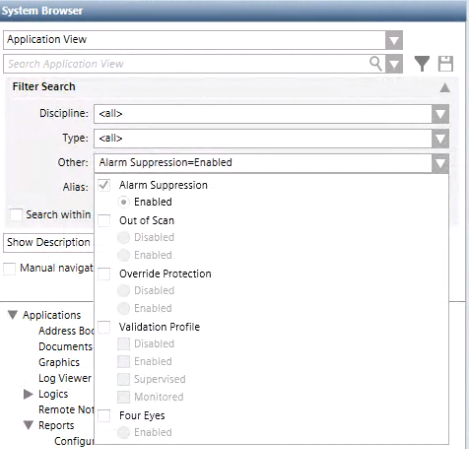
- Click Search.
- The results display the item found area.
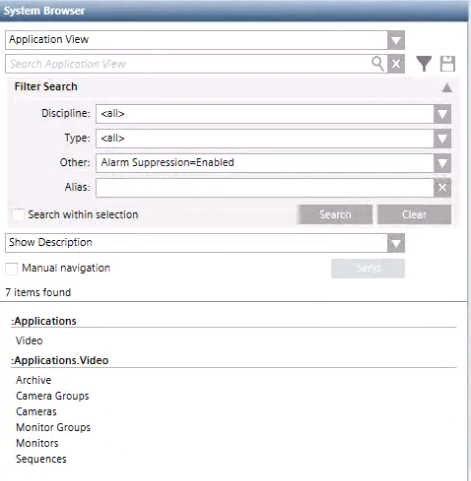
Method 2: Generate a Report
- In System Browser, select Application View.
- Select Applications >Reports > Status.
- In the Default tab, click Import
 .
.
- In the Open dialog box, do the following:
a. Navigate and select the alarm suppression template: Report.Status.HQ.AlarmsSuppression.xml.
b. Click Open.
- Click OK.
- Select Applications >Reports > Status > Alarm Suppression.
- The alarm suppression report template displays in the Default tab.
- Click Run
 .
.
- The list of objects affected by alarm suppression displays in the report template.
