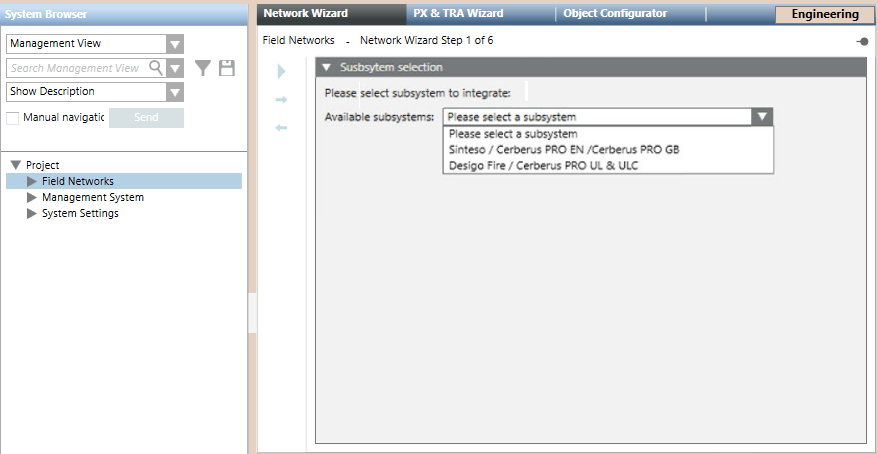
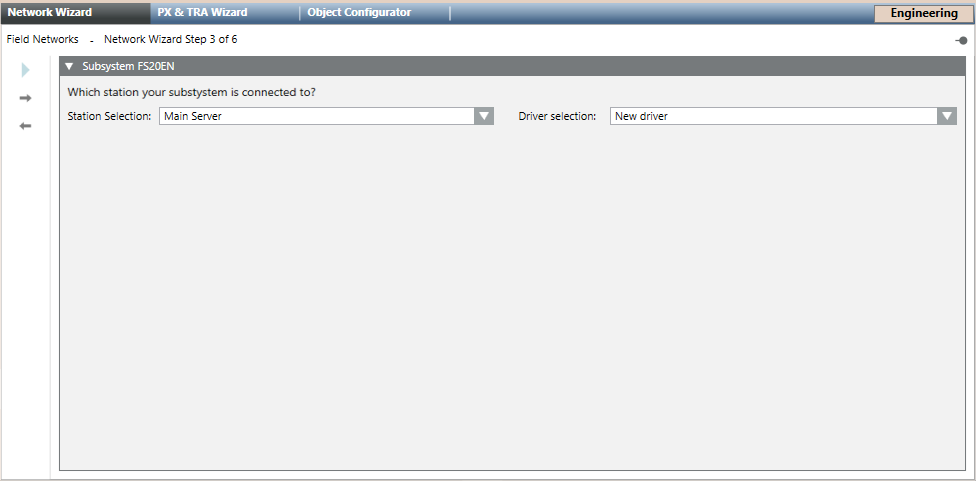
Scenario: You want to create a new BACnet fire network for FS720 Cerberus Pro. This wizard provides a quick procedure that simplifies the general configuration workflow.
You are in the Network Wizard step 2 of 6 – Configure Network Settings.
Enter the fire Network name. The corresponding Network description field is filled out automatically and you can customize it to provide a better definition for users.
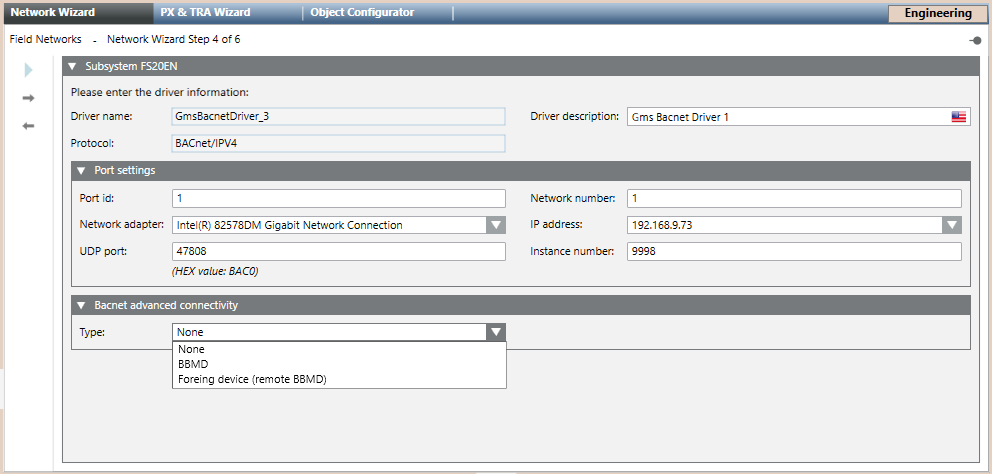
You are in the Network Wizard step 4 of 6 – Configure Driver Settings.
(Optional) In the main expander, customize the Driver description. NOTE: Keep the description different from that of any other driver on the same station.
In the Port settings expander, check and modify as necessary the default driver settings:
In Network number, enter the network number where your management station is connected (typically =1).
In Port id, set the same value as in Network number.
In Network adapter, select the hardware adapter in the drop-down list.
In IP address, set the unique IP address.
In UDP port, the default port is 47808.The UDP port of each physical port have to be unique. If two drivers are assigned to the same Network Interface Card (NIC), you can use the value 47809 for the UDP port of the physical port of the second driver.
In Instance number, enter the BACnet Device Identifier number to assign to the driver as a BACnet client (default: 9998). NOTE: The Instance number must match the BACnet device ID set in the BACnet client configuration of the panel configuration tool. For more information, refer to the general configuration procedure.
In the BACnet advanced connectivity expander, set the connection Type, which can be: - None (default) - BBMD - Foreign device (remote BBDM) For more information, refer to BBMD and Foreign Device.
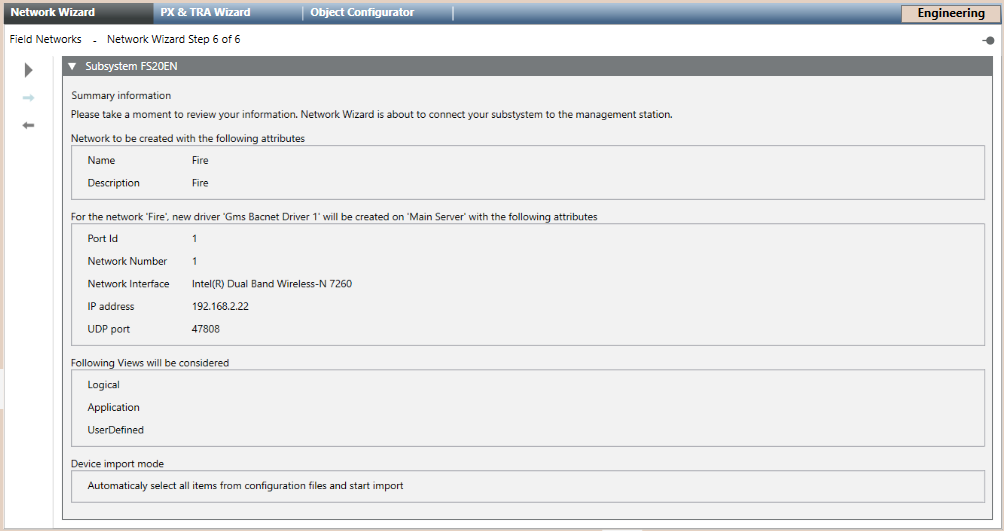
You are in the Network Wizard step 6 of 6 – Start the Network Wizard.
Check the summary information. (Optional) If you want to modify any item, click Previous to go back to the previous page. After the required modifications, press Next to reach this final page again.
Click Start to run the import.
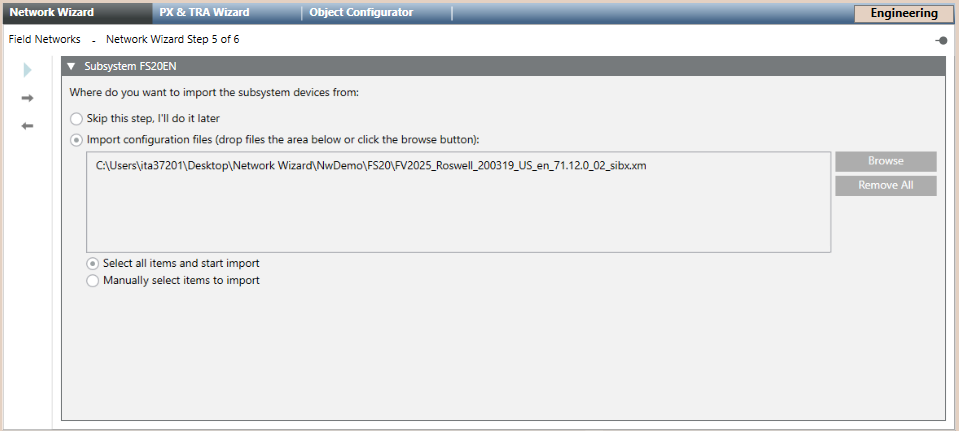
The System Manager dialog box appears, click Yes to confirm the start. NOTE: If you chose Manually select items to import in the previous step, a selection page displays. Do the following:
Select the item you want import in the left box Source Items e in click Right Icon . Repeat this operation for every item you want import or click All Right Icon to import them all.
(Optional) Click Left Icon to remove one item from the right box Items to import or the All Left Icon to remove them all.
Click Import.
The import starts and a progress bar displays.
After a few seconds, the driver and network nodes appear in System Browser. If the import was selected, information from all panels is imported from the XML file. NOTE: Do not use this wizard to modify any settings. Refer instead to the general configuration procedure.
 to proceed to the next page.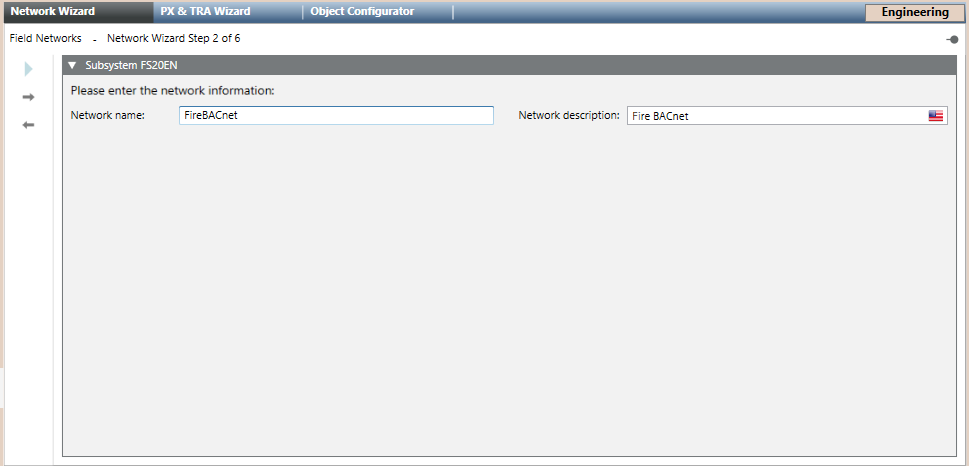
 to go back to the previous page. After the required modifications, press Next
  to run the import.
 . Repeat this operation for every item you want import or click All Right Icon
  to import them all.
 to remove one item from the right box Items to import or the All Left Icon
  to remove them all.