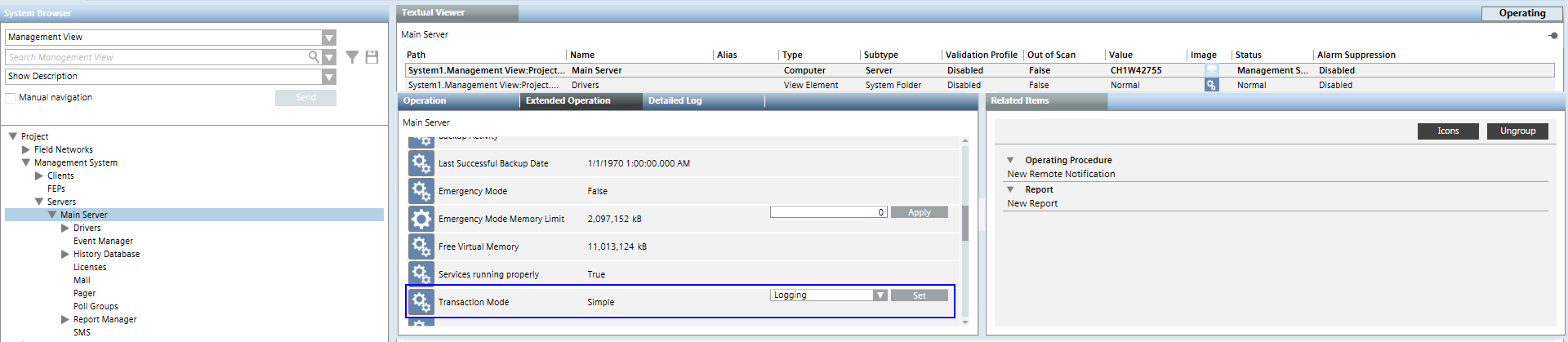
Select Project > Management station > Server > Server >.
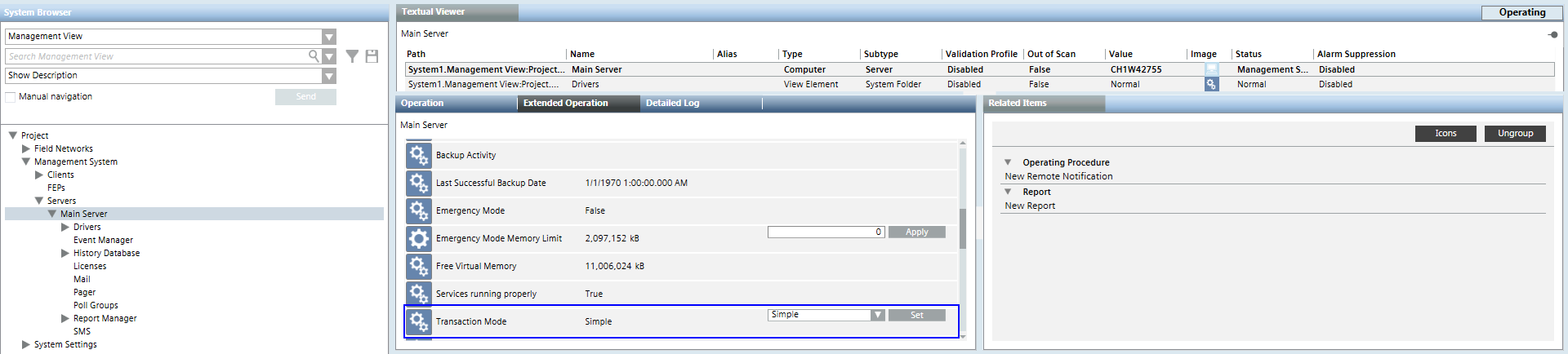
In the Extended Operation tab, select the Transaction Mode property. a. In the drop-down list, select Simple. b. Click Apply. NOTE: The Simple option reduces import time, since not all import transactions are written to the project log database. Following engineering, the project must be reset to Logging.
Under the Advanced Import Rules select one of the options: - None - All I/O data points for large open offices - All I/O data points with a user designation - All I/O data points
For Graphical depiction of an individual segment room select: - No change to default response - One segment to room. NOTE: The Depiction for a Room with Only One Segment is displayed in a graphic template if the function is selected. The setting applies to the entire network. - One segment to room with HVAC information.
Select Do not import unused points. NOTE: If selected, no data points are imported with the following states under the Object Usage property with a state Not Used: By operation, Not Used: By propagation oder Not Used: Operation/propagation. Depending on the applications, this may significantly reduce the amount of data for import.
Select the Show connect only checkbox. NOTE: Only Connect objects are displayed in the Logical View if the function is selected. Owned objects are displayed that have no link to a connect object.
Click Save.
3 – Import Project Data Files
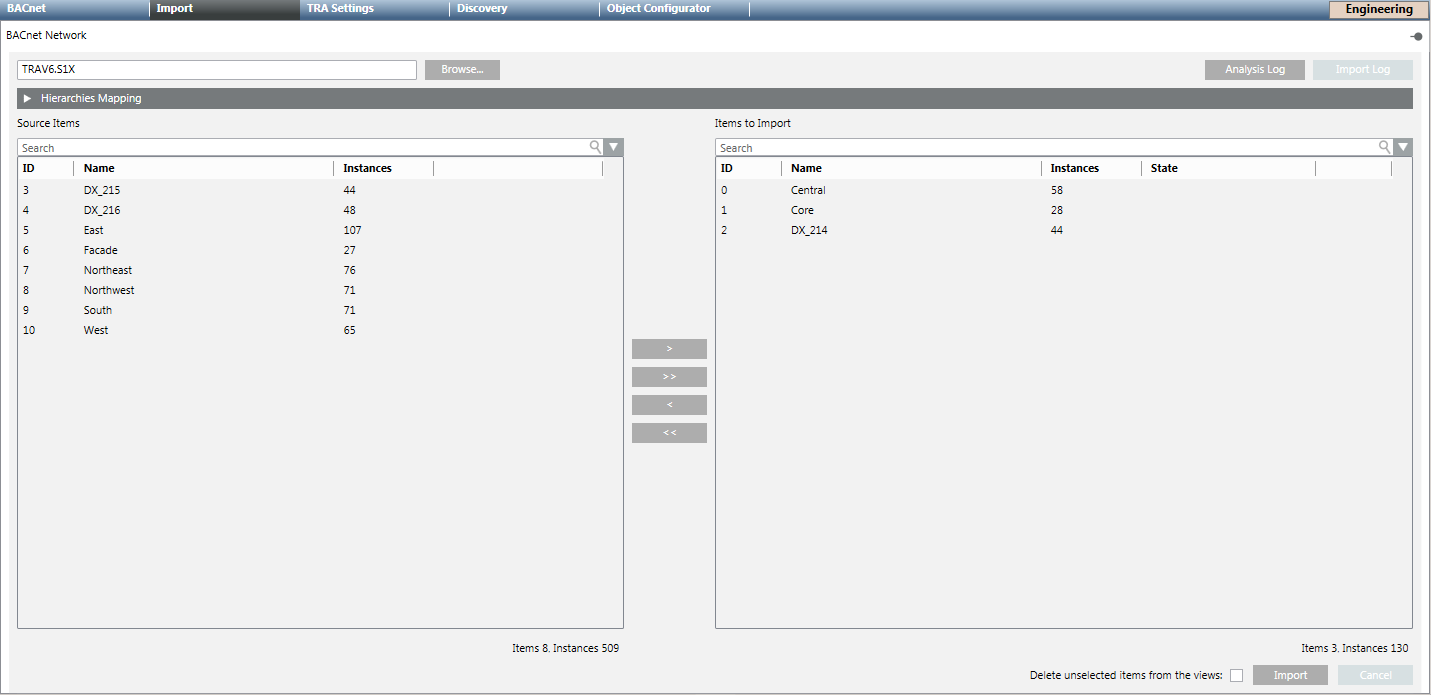
Select the Import tab.
The Import page displays.
Click Open on the top left margin to go to the data files.
In the File type drop-down list, select the data type Desigo (*.s1x).
Select the desired import files.
ABT Export Files
BACnet Router files
Web Gateway files
Click Open.
The preprocessor analyzes the selected file. Click Log Analysis for additional information in the event of a problem.
In the Source column, select . NOTE: If Delete unselected items from the views is selected, all automation stations and linked objects are deleted that are not in the selected import file. The main nodes must be manually deleted in the Logical View and User View.
Click Import.
The import procedure starts with the first file in the Items to Import list. The State can be: Completed, Failed, In progress (%), Partially completed [Number of failed instances].
A message is displayed at the end of the import process that summarizes the results in a detailed log. Click Import log.
 .
. .
.