Configuring the SMS Service (GSM Provider)
Scenario: You want to configure the SMS connection.
Reference: For background information, see SMS Service Expanders.
Workflow diagram:
Prerequisites:
- System Manager is in Engineering mode.
- System Browser is in Management View.
Steps:
1 – Configure the GSM Provider for the SMS Service
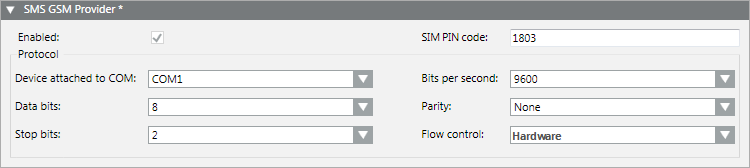
- Select Project > Management System > Servers > Main Server > SMS.
- The RENO Configurator tab displays.
- Open the SMS GSM Provider expander.
- Select the Enabled check box.
- In the SIM PIN code field, enter the PIN code of the SIM card that is being used in the GSM modem.
- In the Device attached to COM drop-down list, select the COM port of the Desigo CC server computer to which the external GSM modem is connected.
- Refer to the documentation of the GSM modem to appropriately configure the physical line settings in the following fields:
- Data bits
- Stop bits
- Bits per second
- Parity
- Flow control
- Click Save
 .
.
2 – Test the SMS Connection (GSM Provider)

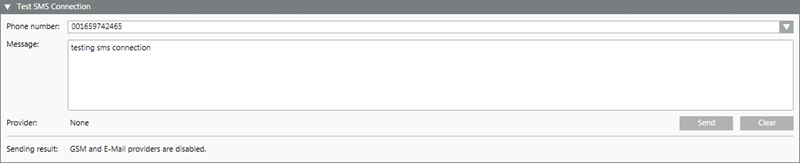
- Open the Test SMS Connection expander. This will cause the Provider field to show which SMS provider will be used to send the test message. In this case: GSM.
- In the Phone number field, enter a valid mobile number directly. Or use the drop-down list to select a recipient from the address book.
- In the Message body field, enter the text of the message. Maximum 160 characters.
- Click Send.
- This will send the test SMS message. The Sending result at the bottom of the expander shows the outcome (for example,
OK,Failed, and so on).
- Check that the SMS message is received on the recipient’s phone.
Information
NOTE:
The Desigo CC’s diagnostics will automatically detect if there is a problem with the GSM protocol (such as, invalid configuration, GSM modem disconnected, and so on), and generate an event to notify you of the fact.
Information
NOTE:
To troubleshoot the SMS service, see Communication Services Troubleshooting.
