Recipient List (Notification Class)
|
Field/Button |
Description |
|
Recipient List |
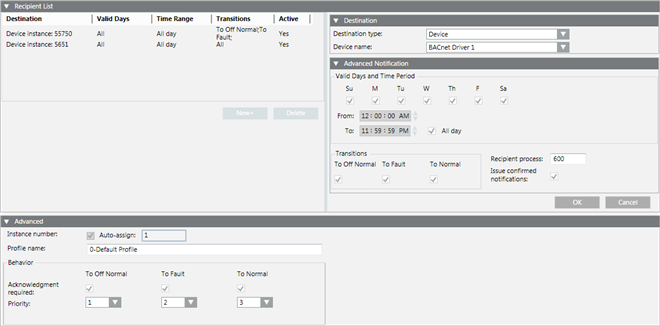
This section defines the notification class object’s recipient list (the list of devices or management stations receiving object alarms). Click New or select an existing destination to display the Destination and Advanced Notification sections. Use these sections to specify a device. To remove a destination from the list, select the destination and click Delete. |
|
Destination |
|
|
Destination type |
Specify the device using one of the options from this drop down list. Additional fields may be displayed depending on your selection:
|
|
Advanced Notification |
|
|
Valid Days and Time Period |
Use these check boxes and fields to specify the days and time period when the device can receive notifications. Check the All day check box to receive notifications 24 hours a day. |
|
Transitions |
Specify the transition states the device can receive:
|
|
Recipient process |
Identifies an application process inside a BACnet device. |
|
Issue confirmed notifications |
Check this box if the device sending the alarm requires a response from the device receiving the alarm. |
|
OK |
Click this button to save the changes made to the device and continue editing the notification class object. You can create a new device or edit an existing device, or edit the object’s Advanced fields. NOTE: To save all changes made to the Recipient List and Advanced sections, you must click the Save button on the Application Toolbar. |
|
Cancel |
Click this button to cancel any changes you have made. |
|
Advanced |
|
|
Instance number |
The number which uniquely identifies the object within the device. Check the Auto-Assign box when creating a new notification class object to have the system assign this number. |
|
Profile name |
The object’s profile, which defines the set of properties, behavior, and/or requirements for a proprietary object, or for proprietary extensions to a standard object. |
|
Acknowledgement required |
Specify the types of alarm events which require acknowledgement:
|
|
Priority |
Assign a priority level to each alarm event. |
