Start/Stop (Trend Logs)
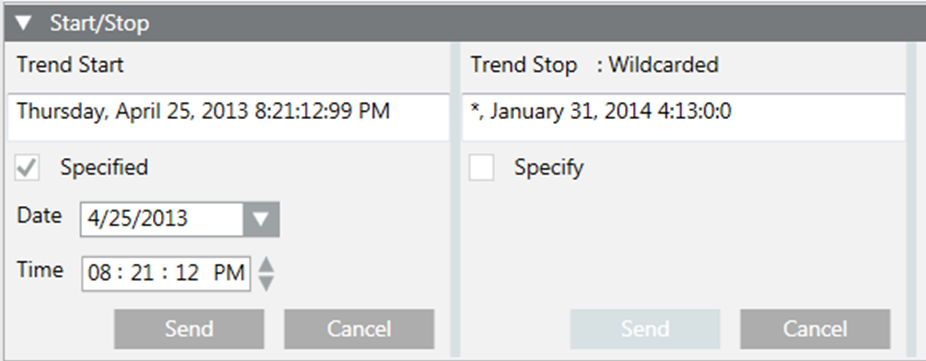
In the Trend Start and Trend Stop sections, the date strings initially display as they are defined in the device. If wildcards are present in any of the values, Wildcarded displays above the date string and the Date and Time fields are hidden.

NOTE:
In order to save any date or time changes that you make, you cannot combine wildcards with your entries. You can have either complete date and time values or all wildcards, but not a combination of both.
|
Field/Button |
Description |
|
Trend Start, |
Use the Trend Start and Trend Stop sections to specify starting and ending dates for trend log collection. Check the Specify box to display the Date and Time fields. |
|
Specify/Specified |
If wildcards are present in the start or stop times, the Specify box is unchecked and the Date and Time fields are hidden. When you check Specify, its name changes to Specified and the Date and Time fields display. The default Trend Start time is the current date and time, and the default Trend Stop time is 24 hours from the current date and time. NOTE: Unchecking the Specified box replaces the date and time with all wildcards (*). |
|
Date |
Allows you to select the start or stop date. |
|
Time |
Allows you to select the start or stop time. |
|
Send |
Saves any changes you have made. |
|
Cancel |
Discards any changes you have made. |
