Copy Alarms
This section displays when you click the Copy All button on the Application toolbar. It allows you to copy the event enrollment objects and the intrinsic alarm properties associated with a BACnet object (source object) to one or more BACnet objects (target objects). This process creates new event enrollment objects for each target object, and overwrites the target object’s intrinsic alarm properties with the properties of the selected object.
This feature has two tabs: Targets and Activity.
Targets Tab
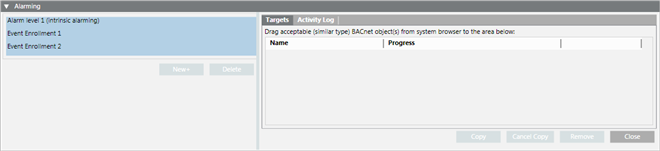
This tab displays by default and lets you build the list of objects you want to copy the alarms to. You build the list by dragging and dropping the objects from the System Browser. This tab also lets you initiate the copy operation.
|
Field/Button |
Description |
|
Drag acceptable (similar type) BACnet objects from System Browser to the area below |
Select the objects in the System Browser you wish to copy alarming information to and drag them to this window. |
|
Name |
The Desigo CC object name. |
|
Progress |
Indicates the progress of the copy operation. |
|
Copy |
Copies the event enrollment objects and the intrinsic alarm properties to the listed objects. The copy operation creates new event enrollment objects for each target object, and overwrites the intrinsic alarm properties of the target object with those of the copied object. |
|
Cancel Copy |
Cancels the copy operation currently in progress. |
|
Remove |
Select one or more objects in the list to remove them. |
|
Close |
Closes the Copy All list. |
Activity Log
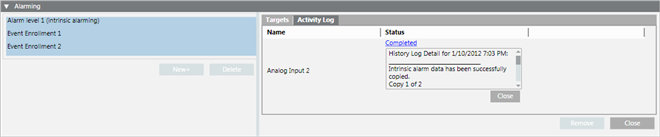
This tab provides status information of the latest copy procedure. This feature runs in the background, so you can begin a procedure and then work with other management station applications. The results of all copy operations display until the client management station is closed or the user logs off. Therefore, no archive of the copy operations is saved.
|
Field/Button |
Description |
|
Name |
The Desigo CC object name. |
|
Status |
Displays the results of the copy operation for the listed object. Click the Status link to expand the entry (expanded entry shown in the example above). Click the Close button, immediately below it, to collapse the entry. |
|
Remove |
Select one or more objects in the list to remove them. |
|
Close |
Closes the Copy All list. |
