RENO Configurator
In Engineering mode, when you select the main Remote Notification folder or a notification under it, the RENO Configurator tab displays. This contains four expanders where you can view or configure the General Settings, Recipients, Message Tailoring, and Triggers of the alarm-triggered remote notification. For related procedures, see the step-by-step section.
To allow the configuration of remote notifications, Groups scopes must be configured with the typical remote notification objects: at least one service (email, SMS, or pager), the address book, and remote notifications.
When you configure an alarm-triggered remote notification, the General Settings expander lets you control some aspects of the behavior of the notification.

Active
Option that enable the remote notification (that is, it will start when it is triggered). You have to clear this check box if you want to configure a remote notification but without using it yet. You can also enable or disable notifications from the Operation tab.
Priority
In situations where multiple remote notifications are triggered at the same time, this parameter determines which one will be sent. (The system does not allow you to assign the same priority to two notifications). Valid range is 1 through 999. The lower the number, the higher the priority.
Starting mode
This setting lets you specify whether the alarm-triggered notification is dispatched with or without operator intervention:
- Manual: When a remote notification is triggered, the system prompts the operator, who must manually start the remote notification from Event List or from the RENO Messages application to dispatch the notification message.
- Automatic: When a remote notification is triggered, the system will dispatch it automatically without operator intervention, either immediately or (if configured, see Delay below) after a time-delay expires.
Delay
(Available only for the Starting mode: automatic). This setting lets you specify the time-delay (in seconds) that the system will wait before sending out an automatic remote notification. The valid range is 0 through 3600 seconds: this value can be set in multiples of 30 seconds.
Multiple starting
This setting lets you specify whether the remote notification is repeated if the same event source triggers it again (recurring alarm).
- Yes: The remote notification will be sent again, even if the preceding one is still being sent out. Note that if you set this value to Yes, a new remote notification is created each time the same event source returns off-normal even when a preceding remote notification has not yet finished.
- No: The remote notification will be sent again only if the previous one is complete.
Can be stopped
This setting lets you specify whether the operator can stop the alarm-triggered remote notification.
- Yes: The operator can stop the notification at any time if its starting mode is manual, or during the time-delay before it starts if its starting mode is automatic.
- No: The operator cannot stop the remote notification once it has been triggered.
Stop on alarm ending
This setting lets you specify whether the remote notification stops when the alarm has been fully handled (that is, when the event disappears from Event List).
Points state
This setting lets you specify for what point states the notification is triggered.
- All: The remote notification starts for all alarms, regardless of their point state.
- Genuine: The remote notification starts only for alarms generated by points in the genuine state.
- Maintenance: The remote notification starts only for alarms generated by points in the maintenance state.
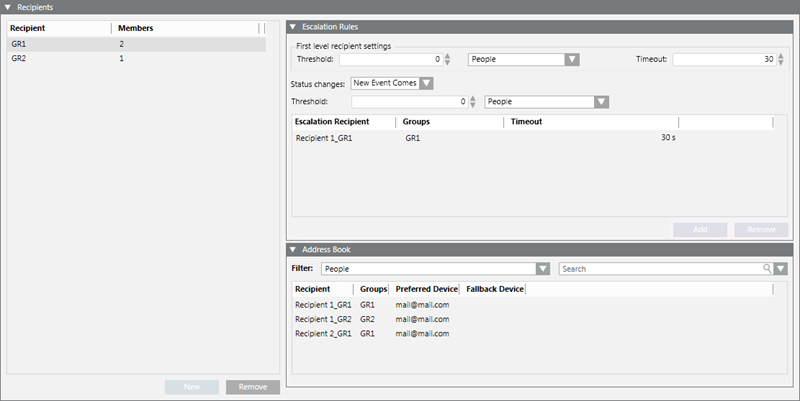
When you configure a remote notification, the Recipients expander lets you define the recipients groups to which the message will be sent. For each group you can optionally specify escalation rules (a threshold of required replies, and an escalation list in case that threshold is not reached).
Recipient List
The Recipient column lists the group or groups to which the message is addressed, while the Members column shows the number of individual recipients in each group.
- At least one recipient group is required. You cannot add individual people as recipients here.
- You can add groups to this list by dragging-and-dropping them from the Address Book. To remove a group from the list, select it and click Remove.
When selecting the recipient groups of a remote notification, you can optionally configure whether the system will expect the individual recipients to acknowledge (reply to) the notification, and specify how many group members need to reply for the group to be considered successfully notified.
Address Book
- Set Filter to Groups to display the list of groups available in the Address Book: Groups are listed showing the name of the group (Group) and the number of contacts (Members) belonging to that group. From here, you can drag-and-drop groups to add them to the Recipient list on the left.
- Set Filter to People to display the list of individual contacts available in the Address Book. Individual recipients are listed showing the person’s name (Recipient), the name of the groups to which that person belongs (Group), and their Preferred Device and Fallback Device. From here you can drag-and-drop individual contacts into the Escalation Recipient list.
- You can search the Address Book by typing in some letters/characters contained in the contact’s Full Name, Groups or Preferred or Fallback Device fields into the Search field. You can also use the drop-down list to repeat previous a previous search.
Escalation Rules
For each recipient group, you can optionally define some situations (Threshold and/or Status Changes) in which the remote notification will be escalated, that is, sent to an Escalation Recipient list of additional contacts. To do this, select the group in the Recipient/Members list on the left and define the following:
- Status Change. Use this field to specify one or more event-related conditions that will trigger the escalation:
- New event comes. When the event first occurs (source goes off-normal) and appears in Event List.
- Event Source Back to Normal. When the alarm condition is resolved (source back to normal).
- Event acknowledged. When the operator sends the acknowledge command.
- Event reset. When the operator sends the reset command.
- Event closed. When the event is fully processed and removed from Event List.
- First level recipient settings. Use these fields to define a threshold of responses required from the recipient group The notification will escalate if the group fails to meet its threshold within the timeout.
- Timeout: Set the amount of time (in seconds), the system waits for responses from the group’s members (default is 30; range is 0 through 3600 seconds in increments of 30 seconds).
- Threshold: The number or percentage of group members that need to reply within the timeout for that group to be considered successfully notified (default is zero; range is 0 through 100% or 0 through the total number of members in the group). If the response threshold is zero, the group will be considered successfully notified provided the messages were successfully sent.
- Escalation Recipient list. You can optionally specify additional escalation recipients, who will be notified if not enough group members respond. Insert here the additional recipients who will be notified if this group is escalated.
- You can drag-and-drop individual contacts from the Address Book to add them to this list.
- Alongside each escalation recipient, set the Timeout within which that person must reply (default is 30 seconds).
- To remove a contact from the escalation list, select it and click Remove.
- Threshold. Sets how many (or what percentage of) the contacts in the escalation list have to reply for the group’s escalation to be considered successful (default is zero; range is 0 through 100% or 0 through the total number of contacts in the escalation list).
- If no replies are required (escalation response threshold = 0), it makes no difference whether recipients reply. The notification is considered to have a successful outcome if the system succeeds in sending the messages.
- If replies are required (nonzero response threshold), the system will consider the notification successful only if it receives enough replies, and may set off an escalation (sending the message to additional escalation recipients) if the response threshold is not met.
- If a group fails to reach its threshold but the escalation succeeds, this means that overall the group is considered successfully notified.
When you set the different timeout values, be sure to set all of them in line with the email traffic to be generated on the email server.

NOTE 1:
A recipient group is considered successfully notified in the following cases:
- If no replies are expected (response threshold=0): provided the messages were successfully sent to all group members.
- If replies are expected (a nonzero response threshold): provided enough group members reply within the Timeout OR (if the group fails to reach its response threshold), provided the escalation is successful (enough escalation recipients reply). If the escalation threshold=0, the escalation will be considered successful provided the messages are successfully sent, even if no escalation recipients.
The overall outcome of the notification as a whole will be:
- Completed: If all its recipient groups are successfully notified
- Partially Failed: If some but not all the groups were successfully notified
- Failed: If the system was entirely unable to send the messages
- No Response: If the system was able to send the messages but none of the groups reached their response threshold.
For details, see Remote Notifications Message Status List.
NOTE 2:
Since pager protocols do not support replies, for remote notifications sent out only via pagers, the response thresholds should be set to zero (otherwise the remote notification will fail).
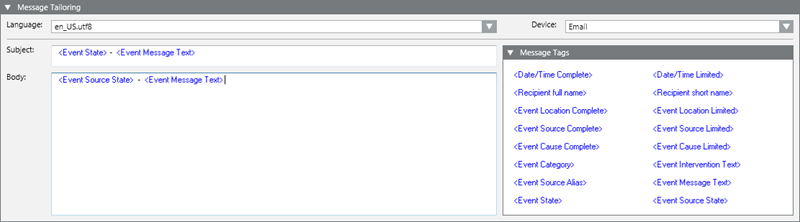
When you configure a remote notification, the Message Tailoring expander is where you compose the actual text of the remote notification message. You must compose a separate message for each sending method (email, SMS, pager) that you intend to use.
Language
This drop-down list lets you select the language in which you want to compose the message.
NOTE:
You must compose the notification message at least in the default language of the system, and you can optionally compose it in any other languages as well. (If you only compose the message in the default language, that text will be used for other languages as well.)
Device
This drop-down list lets you select the sending method (email, SMS, or pager) for which you want to compose the notification message. It should be chosen to match the preferred/fallback devices of the intended recipients (check the Recipients expander).
NOTE:
You are required to compose the notification message at least for the email device, and you can optionally compose it for the SMS and/or pager devices as well. If the intended recipients require multiple sending methods, you must repeat this procedure to compose a separate message for each sending method (email, SMS, or pager).
Message Tags
Drag-and-drop any automatic tags you want to use from this list into the Subject (only for the E-Mail device) and Body fields. You can also directly enter text, including in between the tags, and change the order of the tags (copy/cut/paste/drag-and-drop).
NOTE 1:
You cannot leave the subject line empty in an email message.
NOTE 2:
SMS message length is limited to 480 characters (divided into three messages). Longer text messages will be cut off.
You use triggers to configure when, in what circumstances, and for what combination of event conditions a remote notification will execute.
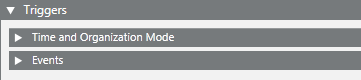
When you configure a remote notification, the Triggers expander lets you set the following:
- Time and Organization Mode: This defines a set of time-dependent preconditions for the remote notification (for example, only if it is a weekend, and the building is unoccupied). For details, see Time and Organization Mode Conditions. Each condition occupies one row and at least one row must be true (OR logic between rows) to assert the Time and Organization Mode trigger.
- Events: This defines the event or combination of events (for example, an alarm in a critical area) that will trigger the remote notification. For details, see Events Conditions. See also Event Conditions by Status Change. Each condition occupies one row and at least one row must be true (OR logic between rows) to assert the Events trigger.
Note that: - The Scope field defines the target object of the event condition that will trigger the remote notification. You can only drag-and-drop individual scope objects from System Browser onto the Scope field. Multi-selection of scope objects is not allowed.
- The Status changes drop-down list lets you define when the notification is triggered based on the event source status. For details, see Event Conditions by Status Change.
An AND logic is applied between the triggers: Time and Organization Mode and Events must both be asserted (true) for the remote notification to start.

If you try to save a remote notification for which you did not configure any triggers, an error message informs you that the remote notification needs at least one event trigger to be saved.
Event Conditions by Status Change
The Status changes drop-down list lets you set one or more event-related situations that will assert the Events trigger. This setting is required otherwise it is not possible to save the changes:
- New event comes. When the event first occurs (source goes off-normal) and appears in Event List.
- Event source is back to Normal. When the alarm condition is resolved (source back to normal).
- Event acknowledged. When the operator sends the acknowledge command.
- Event reset. When the operator sends the reset command.
- Event closed. When the event is fully processed and removed from Event List.

In Operating mode, when the operator starts a remote notification from Event List (click Start Remote Notifications  ):
):
- If only one of the status change conditions is set, the only remote notification available will start.
- If multiple status change conditions are set, the remote notification that corresponds to the current event source state will start.
For workstation alarms that do not require manual acknowledge/reset from the operator, the remote notification is not triggered if Status Change = Event acknowledged or Event reset.
| Selection in System Browser [Engineering mode] | |
Remote Notification object | Remote Notification folder | |
Delete | Delete the currently selected remote notification. | You cannot delete the main Remote Notifications folder. |
Save | Save the changes made to the current remote notification. | n.a. |
Save As | Save the currently selected remote notification with a different name. You can use this to create a new remote notification from an existing one. | Create a new remote notification object. You must specify at least one setting before you can save. |


