In the Save Object As dialog box, select the main Documents folder or any subfolder under it as the destination where you want to save the new document.
Enter a name and description.
Click OK.
The new document object is added to System Browser.
You can associate a file (.PDF, .RTF, .TXT) or a web link (URL of an HTML page) to a document object.
NOTICE
Do not use the Document viewer to show complex AutoCAD drawings
The use of complex AutoCAD drawings exported into single or multilayer PDF files will result in a slow and inefficient image display. It is recommended to import AutoCAD drawings into the Desigo CC graphics application.
If you want to associate a file, copy it to the following location on the file system on the Desigo CC server station: …\\GMSProjects\[ProjectName]\documents.
In System Browser select Applications > Documents> […] > [document].
The current contents of the document display.
If the Document Settings panel is closed click Edit to open it.
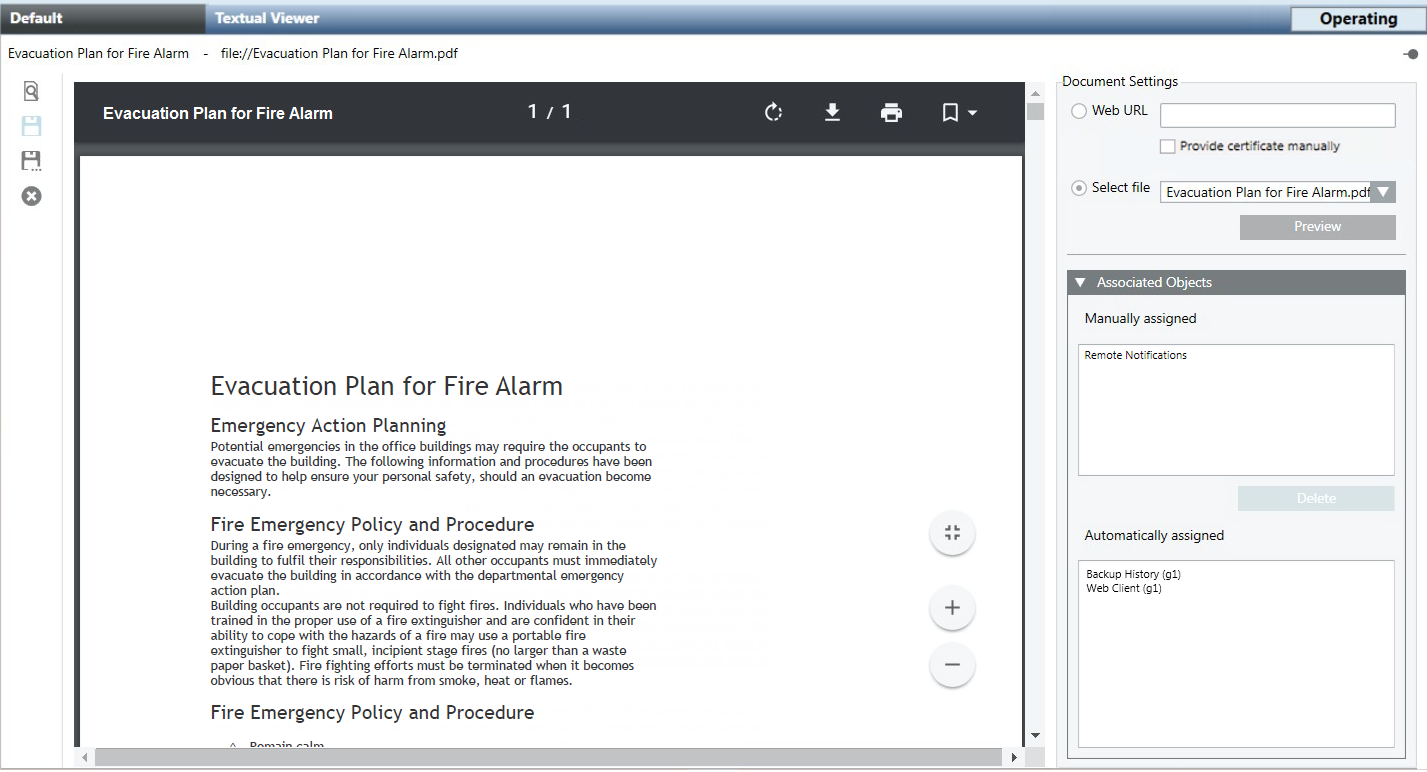
Example of PDF Document
Do one of the following:
Click Web URL and type in the web link that you want to use. NOTE: If a connection is to be established with a website that require a certificate, you must also select the check box Provide certificate manually.
Click Select file and, from the drop-down list, choose from one of the available files previously stored under …\\GMSProjects\[Project]\documents on the Desigo CC server station.
Click Preview to display the contents of the selected file or web link.
Click Save.
The document object is now associated with this new content. The operator can access the document under the Documents folder.
 .
.
 to open it.
  .
.