Excluding Cameras from the Project
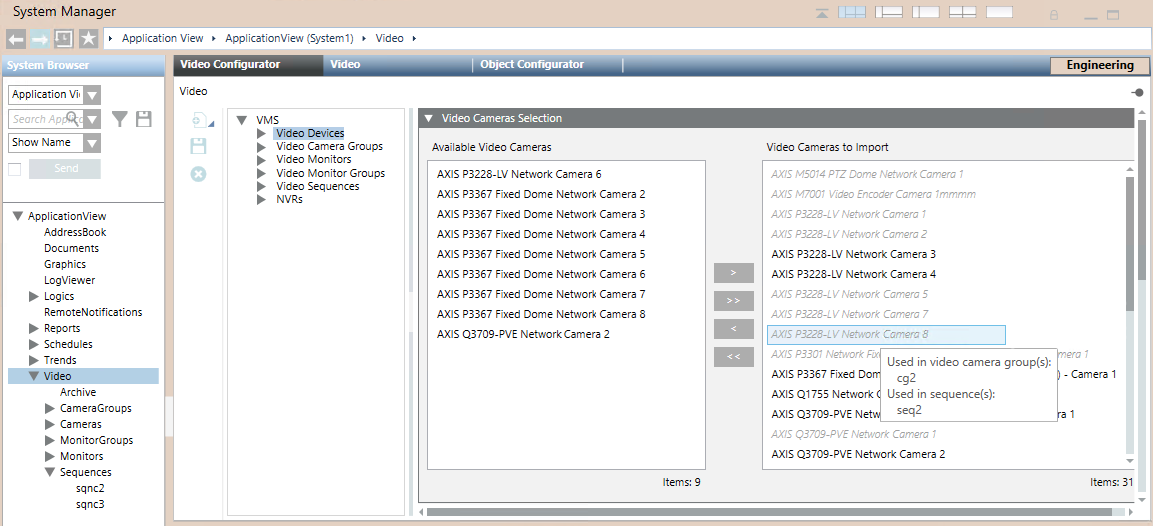
All the video cameras of the connected video management system (VMS)—including the disabled ones—are listed under VMS > Video Devices in the Video Configurator tab. By default, all enabled cameras are imported into the Desigo CC configuration, and so propagate to the System Browser tree, while any disabled ones are excluded.
If required, you can manually select which cameras to exclude or include in the Desigo CC project. Cameras excluded from the configuration in this way continue to operate normally in the VMS, but they are not accessible to Desigo CC clients and are not included in the license count.
Use cases for exclusion include:
- VMS configuration with a large number of cameras that do not all need to be managed from Desigo CC.
- VMS configuration with many permanently disabled/unused cameras (for example owing to cameras represented as multichannel encoders) that you do not want visible in the Desigo CC tree.

NOTE1:
Excluding cameras significantly alters the functionality of the video subsystem in Desigo CC. Carefully check the consequences before putting these changes into effect.
NOTE2:
Exclusion is used to remove cameras from the configuration on a stable basis. Do not use exclusion for temporary removal of cameras or suppression of events. In that case, you must disable the cameras in the VMS instead.
- System Manager is in Engineering mode.
- System Browser is in Application View.
- In System Browser, select Applications > Video.
- In the Video Configurator tab, select VMS > Video Devices.
- Open the Video Camera Selection expander.
- The Video Cameras to Import list on the right shows the VMS cameras included in the Desigo CC configuration. Any excluded cameras display in the Available Cameras list on the left.
NOTE: Initially all enabled VMS cameras are included, and so placed on the right. All disabled VMS cameras are excluded, and so placed on the left.
- To exclude cameras from Desigo CC, select them in the Video Cameras to Import list and use
 or
or  to move them to the left.
NOTE: Cameras shown dimmed cannot be excluded because they are part of a camera group or sequence. In this case, you must first remove the camera from any groups or sequences that use it. Hover over a camera name to see the groups or sequences where it is used.
- To include previously excluded cameras, select them in the Available Cameras list and use
 or
or  to move them to the right.
- Click Save
 .
.
- In a few seconds, the changes propagate to the Cameras folder of System Browser.