Scenario: You want to create a time-based sequence that will allow the operator to cycle through views from different cameras on the same monitor. This can be used to create visual guard tours, or for surveillance sites with a large number of cameras. You can create video sequences that use one or more monitors.
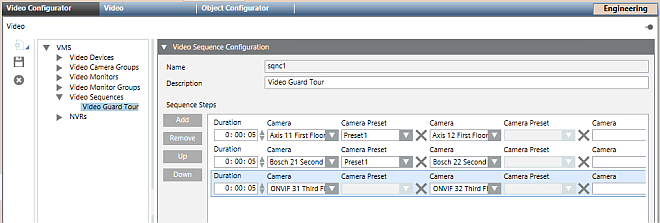
In the Video Configurator tab, select VMS >Video Sequences> [sequence].
The Video Sequence Configuration expander displays any steps already configured in the sequence. Each step corresponds to a row. When the sequence runs, it will cycle through the steps defined here.
If required, click Add to create a new row. Or skip to the next instruction to modify an existing row.
Configure each row as follows:
Enter the Duration of the video sequence step. Note the format: h:mm:ss.
From the drop-down list, select the Camera and, only for PTZ cameras, the PTZ Camera Preset. NOTE: For fixed cameras, this field is disabled. For PTZ cameras, you must enter a Preset, otherwise no video will display.
(Optional). If you want the sequence to occupy more than one monitor: a. Alongside the X symbol, on the same row, complete another pair of Camera/Camera Preset fields. b. Repeat the above step for as many monitors as you want to use. c. You can click the X symbol to delete the camera entry left of the symbol.
When this video sequence step executes, the first camera in the row will display on the first monitor, the second camera in the row will display on the second monitor, and so on.
Repeat steps 3 to 4 above to configure other video sequence steps.
(Optional) Adjust the video sequence steps as follows: - Select a step and click Up and Down to change the order of the steps. - Select a step and click Remove to delete it.
Click Save.
In a few seconds, the changes propagate to the Sequences folder of System Browser.
To preview the result, in System Browser select Applications > Video > Sequences > [sequence].
Images from the newly-created video sequence populate one or more monitors of the video view, and cycle through the steps with the duration and order you configured. The monitors occupied by the video sequence are marked with an icon.
 , and select Add a New Video Sequence.
 .
. .
. icon.
icon.