Configuring the VideoApiService Account
Scenario: By default, the BT Video API service runs on the Desigo CC server as an anonymous Windows Network Service. For security reasons, you must make it instead run as a named account, with administrator privileges. In addition, for proper operation of the Video extension, Desigo CC services must also be set to run under this named account.
Reference: This task is performed within step 5: Set up User Accounts and Networking of the main video integration workflow.
Workflow diagram:
Prerequisites:
- The VMS server is installed.
- The Video extension is installed.
Steps:
On the Desigo CC server computer, you need to create a VideoApiService user account in Windows.
NOTE: The account must be an administrator Windows user, and it will also be assigned the role of administrator in the VMS.
Depending on the deployment scenario, this task is performed in the following ways:
- If the the VMS server runs on the same computer as the Desigo CC server: create a VideoApiService local account on the shared computer.
- If VMS server runs on a separate computer from the Desigo CC server:
- On a Windows domain, create a domain VideoApiService account, which can be used on all the computers of the domain.
- On a Windows workgroup, create the same VideoApiService account as local user on the Desigo CC server and on the VMS server. Use the same user name and password on both computers. If a password change is done later (for example due to enforcement of a password policy), the change must be done consistently on both computers.
In any case, for more information about creating a new Windows user account, refer to the Microsoft documentation and online help.
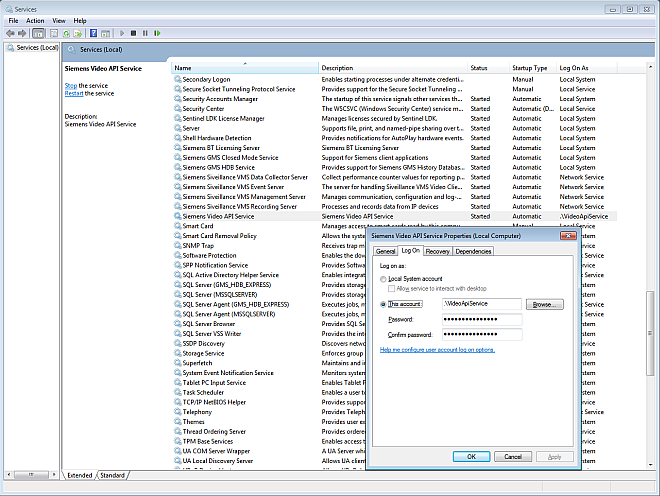
- In Windows, on the Desigo CC server computer, do one of the following to start the Services tool:
- Click Start > Control Panel > Administrative Tools > Services
or
- From Start > Run... launch services.msc.
- In the service list, locate the Siemens Video API Service.
- Right-click the Siemens Video API Service and select Properties.
- In the Properties dialog box, select the Log On tab.
- Under Log On as: select This account and click Browse.
- In the Select User dialog box, click Advanced.
- In the new Select User dialog box, click Find Now.
- In the Search results list, select VideoApiService and click OK twice.
- Enter and confirm the password of the VideoApiService account.
- Click OK and close the Services tool.
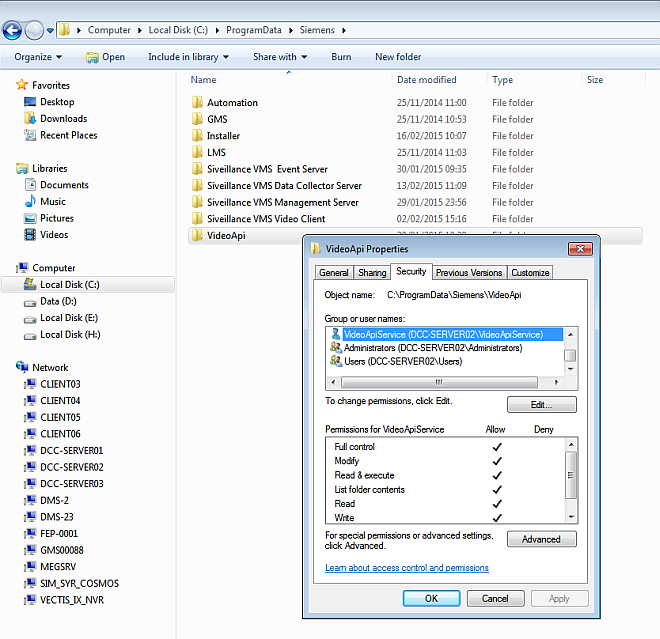
- On the Desigo CC server computer, using Windows Explorer, locate the folder [drive letter]:\ProgramData\Siemens.
NOTE: The folder is normally hidden. You must modify the folder option to show hidden files and folders. For more information, refer to the Windows documentation.
- Right-click the sub-folder VideoApi and select Properties.
- In the VideoApi Properties dialog box, select the Security tab.
- Click Edit.
- If the VideoApiService user is not present in the Group or user names list, do the following:
a. Click Add.
b. In the search field, enter VideoApiService and click Check names.
d. Click OK.
- The VideoApiService account is added to the Group or user names list.
- In the Group or user names list, select the VideoApiService user.
- Check the Allow > Full control option.
- Click OK.
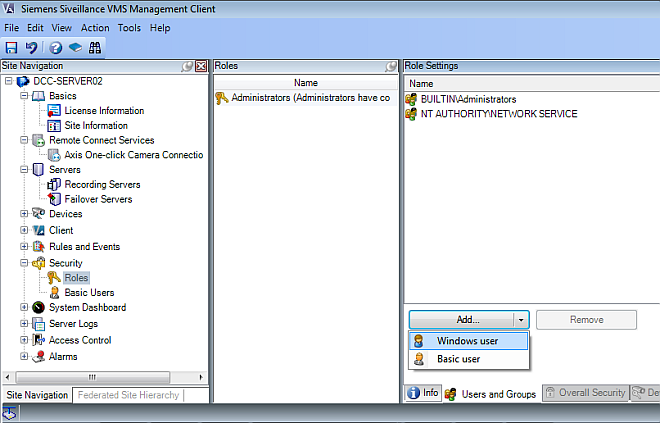
- Start the VMS Management Client.
- In the Site Navigation tree, select Security > Roles.
- In the Roles pane, select Administrators.
- In the Role Settings pane, at the bottom, select the Users and Groups tab.
- Select Add.. > Windows User.
- In the Select Users or Groups dialog box, click Advanced.
- In the Advanced dialog box, click Find Now, select the VideoApiService user account in the list, and click OK.
NOTE: If the VideoApiService user account does not appear in the list (the list might not include very recent updates), click Cancel to close the Advanced dialog box and proceed as follows:
a. Type VideoApiService in the Enter the object name to select field.
b. Click Check Names to show the full account name.
c. Click OK.
- The VideoApiService user account appears in the Roles Settings list as VMS administrator.
By default, Desigo CC services run under the local system account. However, for proper operation of the Video extension, Desigo CC services must be set to run under a specific Windows administrator account that has VMS access. You can do this in SMC by setting the VideoApiService account as the Desigo CC system account.
- In the SMC tree, select System.
- In the Settings expander, select Specific account.
- Cilck Browse… and select the VideoApiService account configured in the preceding steps.
- Click Save
 .
.
NOTE: If the Desigo CC services run under the local system account, the export of video clips to a file does not work.
