Configuring VideoStreaming Users
Scenario: In order to display live or recorded video on Desigo CC stations, you must configure video streaming permissions as described here.
Reference: This task is performed within step 5: Set up User Accounts and Networking of the main video integration workflow.
Worfklow diagram:
Prerequisites:
- The VMS server is installed.
- The Video extension is installed.
Steps:
- Start the VMS Management Client.
- In the Site Navigation tree, select Security > Roles.
- Right-click inside the Roles pane and select Add Role.
- In the Add Role dialog box, enter StreamingUsers in the Name field.
- Click OK.
- The new StreamingUsers role appears in the Roles pane.
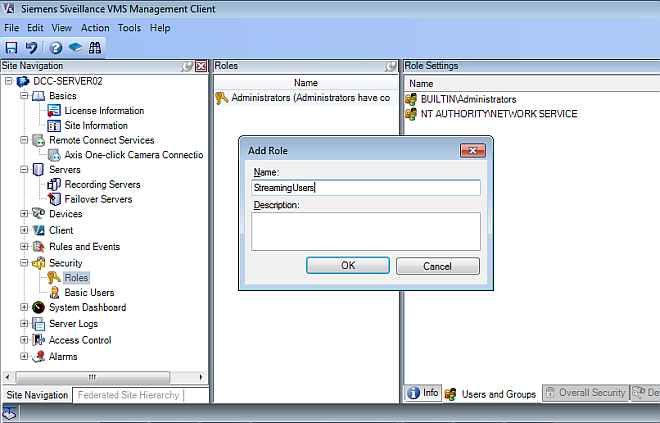
- The VMS Management Client tool is running.
- In the Site Navigation tree, select Security > Roles.
- In the Roles pane, select StreamingUsers.
- In the Role Settings pane, select the Overall Security tab.
- Select the Cameras security group.
- Check the following Allow options:
- Read
- View Live
- Playback
- Click the Save icon on the top left of the VMS Management Client window.
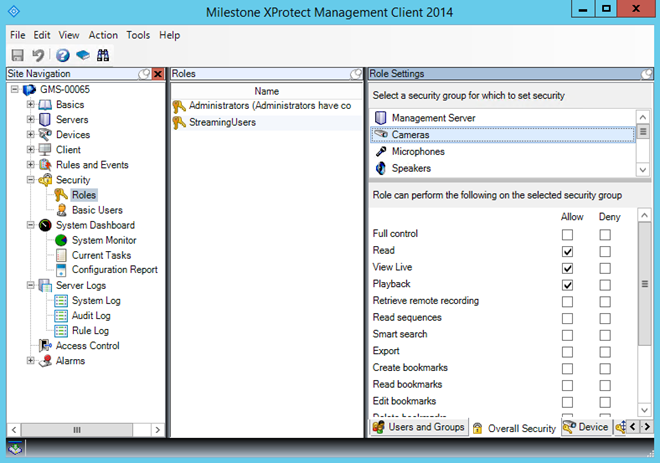
In order to get VMS streaming video in Desigo CC, the Windows user who launches the Desigo CC client must be assigned to the StreamingUsers role. Therefore, in the VMS, associate all Desigo CC Windows users to the StreamingUsers role as described here.
- For each Desigo CC user, on the VMS server computer create an identical Windows account (same UserId and password) to the one that user has on the Desigo CC station.
NOTE: In a Windows domain, the associated users are automatically distributed on the clients. However, in a Windows workgroup you will need to replicate and then maintain the accounts manually on all GMS and VMS stations (including web clients).
NOTE: if it is not possible to create the Windows accounts on the VMS computer, see the fallback method below.
- In the VMS Management Client tool:
- In the Site Navigation tree select Security > Roles.
- In the Roles pane, select StreamingUsers.
- In the Role Settings pane, at the bottom, select the Users and Groups tab.
- Click Add... Windows user.
- Browser for and select the Widows accounts created in step 1 above.
- Click OK.
- The Windows users are assigned to the StreamingUsers role. This will enable these users to see streaming video from their Desigo CC clients.
Use this fallback method to work around policy issues, if it is not possible to create the Windows users on the VMS computer as described above.
Create a User Associated to StreamingUsers Role
- In the VMS Management Client tool:
a. In the Site Navigation tree select Security > Roles.
b. In the Roles pane, select StreamingUsers.
- In the Role Settings pane, at the bottom, select the Users and Groups tab.
- Click Add... Basic user.
- In the Select Basic Users to add to Role dialog box, click New...
- In the New Basic Users dialog box, enter VideoApiStreamingUser in the User name field.
NOTE: The user name is case sensitive; you need to enter the exact letters of the name.
- Enter and confirm a Password in the corresponding fields. Note that the password fields cannot be left blank, and the password can be any string: it will be overwritten by the BT Video API when the service connects.
- Click OK.
- The VideoApiStreamingUser user appears in the Roles Settings list as basic VMS user.
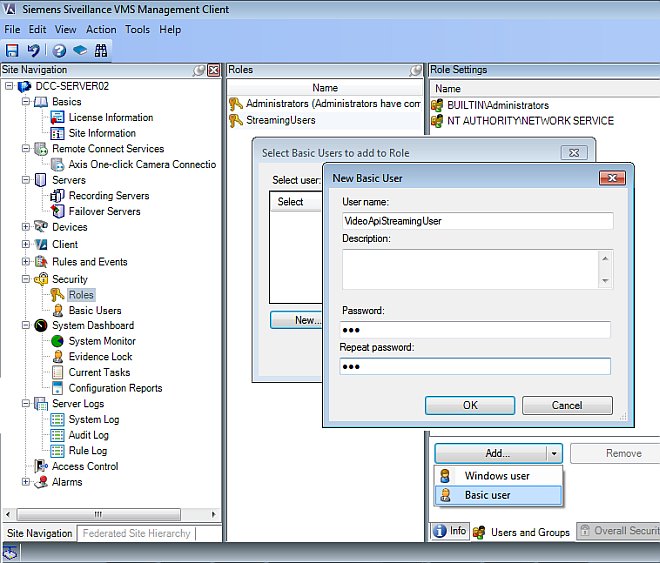
Add Credentials of the VideoApiStreamingUser on the Management Platform Station
Next, we will use the Windows Credential Manager to add the VideoApiStreamingUser, created above, to the Desigo CC station where we want to display video streams.
Repeat this procedure for all the Desigo CC stations where you want to display streaming video.
- On the Desigo CC station where you want to show video streams, open the Windows Credential Manager as follows:
a. Select Start > Control Panel.
b. Select User Accounts > Credential Manager.
- Select Windows Credentials.
- Click Add a generic credential.
- In the Internet or network address field, enter VMS server host name.
- In the User name field, enter exactly the following string:
[BASIC]\VideoApiStreamingUser
- In the Password field enter the password you used for creating the VideoApiStreamingUser, above.
- The credentials of the VideoApiStreamingUser are added to the vault of the Desigo CC computer.
- Restart the Desigo CC application.
