Configuring Monitor Groups
Scenario: To be able to display video, a management station must have an assigned monitor group for operation, that will populate its video view. In addition, to be able to display video during alarm handling, a station must also have an assigned monitor group for events. The Desigo CC server station has two preconfigured monitor groups assigned to it by default. Any other stations need to be manually assigned a monitor group before they can display video.
Reference: For background information see Monitors and Monitor Groups Reference.
Workflow diagram:
Prerequisites:
- Desigo CC is configured to support video surveillance. See Integrating Video Surveillance and Video License and Application Rights.
- System Manager is in Engineering mode.
- System Browser is in Application View.
Steps:
The default video configuration includes 8 preconfigured monitors. Do this procedure if you need to create some additional monitors, to include in the monitor group of a station.
Method 1: Add a Single Monitor
- In System Browser, select Applications > Video.
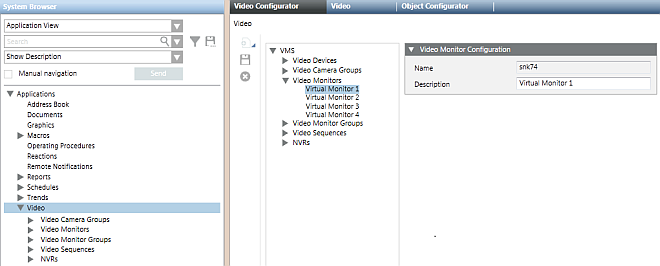
- In the Video Configurator tab, expand the Video Monitors folder of the VMS tree.
- Click New
 , and select Add a New Monitor.
- In the Video Monitor Configuration expander, enter a Description for the monitor.
NOTE: The following characters are not allowed in the Description text: “.” (dot), “:” (colon), “?” (question mark), “*” (asterisk).
- Click Save
 .
.
- The new monitor is created in the Video Monitors folder of the VMS tree.
- The new monitor is also added under Applications > Video > Video Monitors in System Browser.
Method 2: Add Multiple Monitors
- In System Browser, select Applications > Video.
- In the Video Configurator tab, expand the Video Monitors folder of the VMS tree.
- Click New , and select Add Multiple Monitors.
- In the Multiple Monitor Configuration expander, enter the monitor Description prefix (it will be followed by a sequential number "_nnnn") and the number of monitors (up to 16).
NOTE: The following characters are not allowed in the Description text: “.” (dot), “:” (colon), “?” (question mark), “*” (asterisk).
- Click Save .
- The new monitors are created in the Video Monitors folder of the VMS tree.
- In a few seconds, the new monitors are also added under Applications > Video > Video Monitors in System Browser.
To Delete a Monitor
To remove a monitor that is no longer needed:
- In the Video Configurator tab, select VMS > Video Monitors > [monitor].
- Click
 .
.
The default video configuration includes 2 preconfigured monitor groups. Skip this section if you want to modify an existing monitor group.
- In System Browser, select Applications > Video.
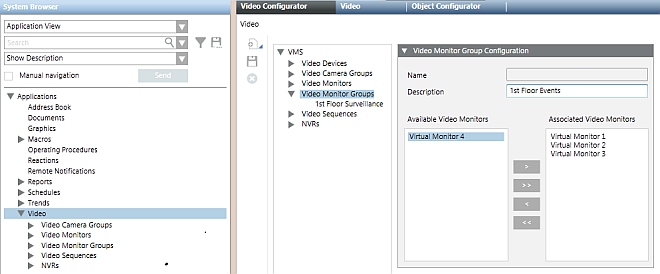
- In the Video Configurator tab, expand the VMS > Video Monitor Groups folder.
- The monitor groups already configured in the system display in the VMS tree.
- In the Video Configurator tab, select VMS > Video Monitor Groups.
- Click New , and select Add a New Video Monitor Group.
- In the Video Monitor Group Configuration expander, enter a Description for the monitor group.
NOTE: The following characters are not allowed in the Description text: “.” (dot), “:” (colon), “?” (question mark), “*” (asterisk).
- Click Save .
- The new monitor group is created in the Video Monitor Groups folder of the VMS tree.
- The new monitor group is also added under Applications > Video > Video Monitor Groups in System Browser.
To Delete a Monitor Group
Do these steps to remove a monitor group that is no longer required. This will not delete any of the monitors included in the group.
- Before deleting a monitor group, check that it is not used by any station. See Checking the Stations Associated to a Monitor Group.
- In the Video Configurator tab, select VMS > Video Monitor Groups > [monitor group].
- Click .
- The monitor group node is removed from the Video Monitor Groups folder of the VMS tree.
- In a few seconds, the monitor group is also removed from the Monitor Groups folder of System Browser.
- In System Browser, select Applications > Video.
- In the Video Configurator tab, expand the VMS > Video Monitor Groups folder.
- The monitor groups already configured in the system display in the VMS tree.
- In the Video Configurator tab, select VMS > Video Monitor Groups > [monitor group].
- The Video Monitor Group Configuration expander displays the list of available monitors on the left, and the monitors included in this group on the right.
- Use
 or
or  to add more monitors to this group.
- Use
 or
or  to remove monitors from this group.
NOTE: You can include the same monitor in more than one monitor group—for example to obtain video views that share some images in common. Monitors will populate the video view from left to right and then from top to bottom.
- Use the Up and Down buttons to change the order of the monitors in the monitor group.
- Click Save .
- In a few seconds, the changes propagate to the Monitor Groups folder of System Browser. The new arrangement will affect the video view of all stations that use this monitor group.
The Desigo CC server station has two preconfigured monitor groups assigned to it by default. Any other stations need to be manually assigned a monitor group before they can display video.
- In System Browser, select Applications > Video > Monitor Groups > [monitor group].
- In the Monitor Control tab, Associated stations for Operating lists the stations that use this monitor group for their normal surveillance video view. Associated stations for Events lists the stations that use this monitor group for the video view that displays during alarm-handling.
NOTE: You can associate multiple stations to the same monitor group. If you do this, their video views will display the same set of images. However, each station can have only one operating monitor group and one events monitor group.
- Select the Manual navigation check box and select the Management View.
- Select the station you want to associate to this monitor group from one of the following:
Project > Management System > Clients > [client or web station]
Project > Management System > Servers > Main Server
Project > Management System > FEPs > [fep station]
NOTE: Identified web-based stations (web clients and Windows app clients) can be individually associated to monitor groups just like client stations. However, anonymous web clients, generically defined as Default web client, can only be collectively associated to the same pair of monitor groups.
- Drag-and-drop the station node into the Associated stations for Operating box (for video surveillance operations) and/or into the Associated stations for Events box (for alarm handling).
- Click Save .
- The station name is added to the Associated stations list.
NOTE: To remove an association, select the station name in the Associated stations lists and press the Delete button, located on the lower right.
- Deselect the Manual navigation check box.
- The video view of the selected station will be populated with the monitors of the assigned group.
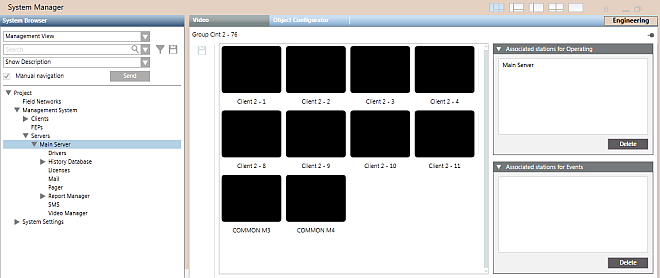
Complete this procedure to set the video sources that display in each monitor of a group. These changes will affect the video views of any stations that are assigned that monitor group.
- In System Browser, select Applications > Video > Monitor Groups > [monitor group].
- The Video tab displays the video images of the selected monitor group.
- Use the toolbar to adjust the layout so that all the monitors are visible.
- In System Browser, select the Manual Navigation check box.
- Under Applications > Video > Cameras, select the camera you want to connect to a monitor.
- Images from the selected camera display in the first (top left) monitor. However, this connection is not persistent. The first monitor is reserved for displaying the currently selected video object, so its connected video source changes frequently.
- Drag-and-drop the camera onto one of the other monitors in the Video tab.
- The monitor is now connected to that camera, and will display its images in the video view.
NOTE: This change will affect all the video views that include this monitor.
- Repeat steps 4 to 6 above to connect other monitors in the group to cameras.
NOTE: You can click X in a monitor to disconnect its camera.
- The configured video sources will populate the video view of any stations that are assigned this monitor group, see Checking the Stations Associated to a Monitor Group. They can also be accessed from any station by directly selecting the monitor group, see Display a Monitor or Monitor Group.
