Camera Timeline Reference
In the Video controls of the Contextual pane, the Timeline can show both graphically and textually the video recordings and tags of the latest 24 hours for the selected camera. Select the Graphic or Textual display on the tabs located on the right side of the timeline area.
In graphic mode, the timeline shows a 2-color column grid that represents the latest 24 hours of the camera operations. On the grid, tags appear as colored diamonds, whereas recordings appear as green bars above the tags. You can expand the tag view by double clicking the corresponding diamond symbol: depending on the length of the tag, a green bar may appear below the diamond to show the tag duration. Instantaneous tags will only expand with a new diamond symbol.
Identify video recordings by hovering the mouse pointer over the symbols and getting detailed information in a tooltip box.
Use the scrollbar at the bottom to move left/right on the timeline. Adjust the time resolution using the mouse wheel or modifying the size of the track of the scrollbar. Click the Refresh icon  on the toolbar to get the latest available data from the archive.
From the timeline, drag-and-drop a tag or a recording onto a monitor of the video view to display the recording.
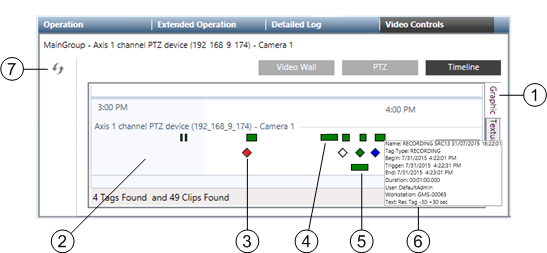
Graphical Timeline | ||
| Name | Description |
1 | Graphic tab | Select graphic display here. |
2 | Timeline | Graphically displays recordings and tags on a timeline grid. |
3 | Tag diamond | Shows a tag: double click the diamond to expand the tag duration on the timeline. Drag-and-drop it onto a monitor to replay the recording. Note the tag color code: |
4 | Recording bar | Shows a recording: drag-and-drop the bar onto a monitor to replay the recording. |
5 | Tag bar | Shows the tag duration. Drag-and-drop it onto a monitor to replay the recording. |
6 | Tooltip | Allows for recording/tag identification. It can contain the following: |
7 | Refresh icon | Allows for getting latest available data in the timeline. |
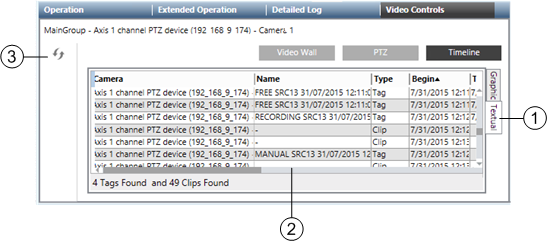
In textual mode, tags and recordings are listed in a compact table that presents the following recording information (depending on the type of item, not all columns are populated):
- Camera
- Name
- Type (Clip for video recordings or Mark for tags)
- Begin, Trigger (offset), and End time
- Duration
- Tag Type
- Event ID, Event Source, Event Cause
- User
- Workstation
- Text
From the table, drag-and-drop a tag or a recording line onto a monitor of the video view to display the recording.
|
Textual Timeline | ||
|
|
Name |
Description |
|
1 |
Textual tab |
Select textual display here. |
|
2 |
Item list |
Lists recordings and tags in a table. Select a row and drag-and-drop an item onto a monitor to replay the recording. |
|
3 |
Refresh icon |
Allows for getting latest available data in the timeline. |
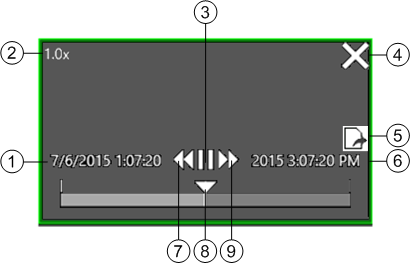
Replay Controls | ||
| Name | Description |
1 | Start time | Based on the pre-trigger time (see Global Video Control Commands). It is set to 1 hour for recordings started by Manual and Free tags. Depending on the VMS configuration, video images may not be available as far as one hour earlier. |
2 | Speed and direction | Replay speed and direction, as set by the Rewind and Forward buttons. |
3 | Playing control | Play ( |
4 | X symbol | Close the replay session. |
5 | Export symbol | Export the recording of the time period being displayed. |
6 | End time | Based on the post-trigger time (see Global Video Control Commands). It is set to 1 hour for recordings started by Manual and Free tags. Depending on the VMS configuration, video images may not be available as far as one hour later. |
7 | Rewind | Modify speed backwards. |
8 | Trigger time | Starting point (recording trigger time). |
9 | Forward | Modify speed forwards. |
 )/ Pause button.