Reconfiguring FS20
Scenario: You want to reconfigure an existing FS20 system, fully configured in Desigo CC, to a new FS20 node that reuses the same detection lines.
This can be necessary when:
- The BACnet configuration was changed and new BACnet IDs must be used for the FS20
- The FS20 was moved from one BACnet network to another, for example after a network split or merge.
- The FS20 connection was moved from a server to a FEP or vice versa
The migration procedure can automatically arrange the fire object references in the Desigo CC configuration.
NOTE: In case of a site merge, the procedure also applies to panels whose BACnet ID has not changed.
Reference: For background information, see the reference section.
Workflow diagram:
Prerequisites:
- The appropriate panel extension is installed and included in the active project.
- The Danger Management Common extension is installed and included in the active project.
- The FS20 you want to reconfigure is fully configured in Desigo CC.
- The new FS20 panel has been configured to support the same fire objects as the old FS20.
NOTE: Keep track of the BACnet IDs of old and new panels that you can use to match the correct pairs during the procedure. - System Manager is in Engineering mode.
- System Browser is in Management View.
- You have full scope visibility of all fire objects in both the Source and Target panel.
- You have full scope visibility of all objects involved in the reconfiguration (maps, macros, reactions, and so on, see FS20 Reconfiguration Limits and Compatibility).
Steps:
Before reconfiguring the FS20 system, you need to configure the new panel that will replace the old one.
Refer to the FS20 Configuration in Desigo CC:
- Configure the BACnet network and driver for the new FS20 according to the new BACnet plan.
NOTE: You can have the new FS20 connected on a different BACnet network than the old FS20.
- Complete the new FS20 BACnet configuration.
NOTE: Do not configure the objects affected by the migration, refer to FS20 Reconfiguration Limits and Compatibility.
- Take a project backup that can allow you to start again in case of migration errors.
- To speed configuration, set the transaction mode to simple.
- In System Browser, select Project > Field Networks > [BACnet Network].
NOTE: In case the two FS20 are on different networks, select the BACnet network where the new FS20 is connected.
- Page 1 of 2 displays: Select the migration type.
- In Migration Types, select FS20 reconfiguration.
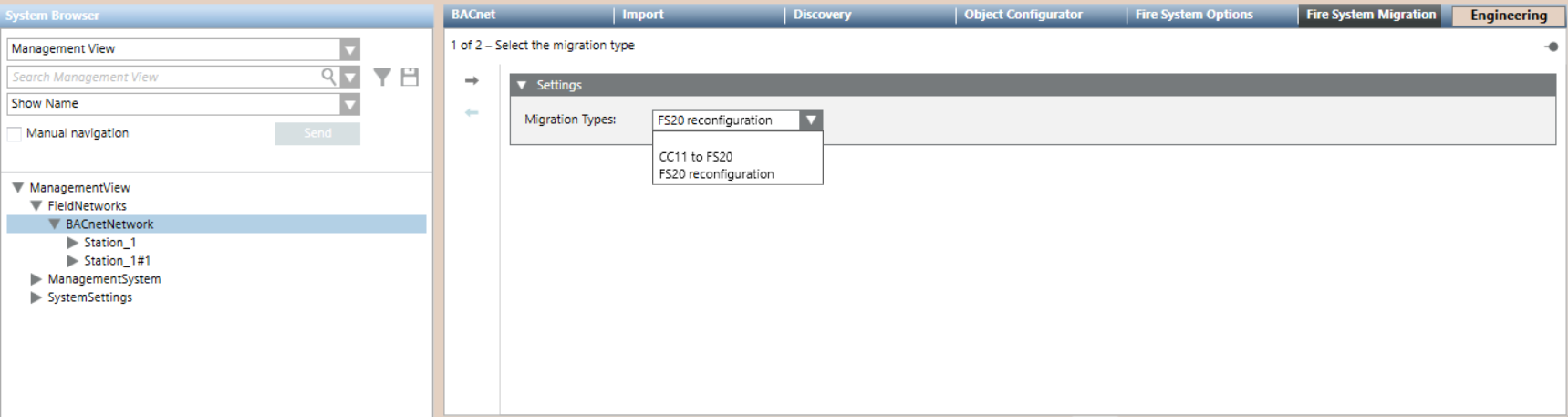
- Click
 to proceed to the next page.
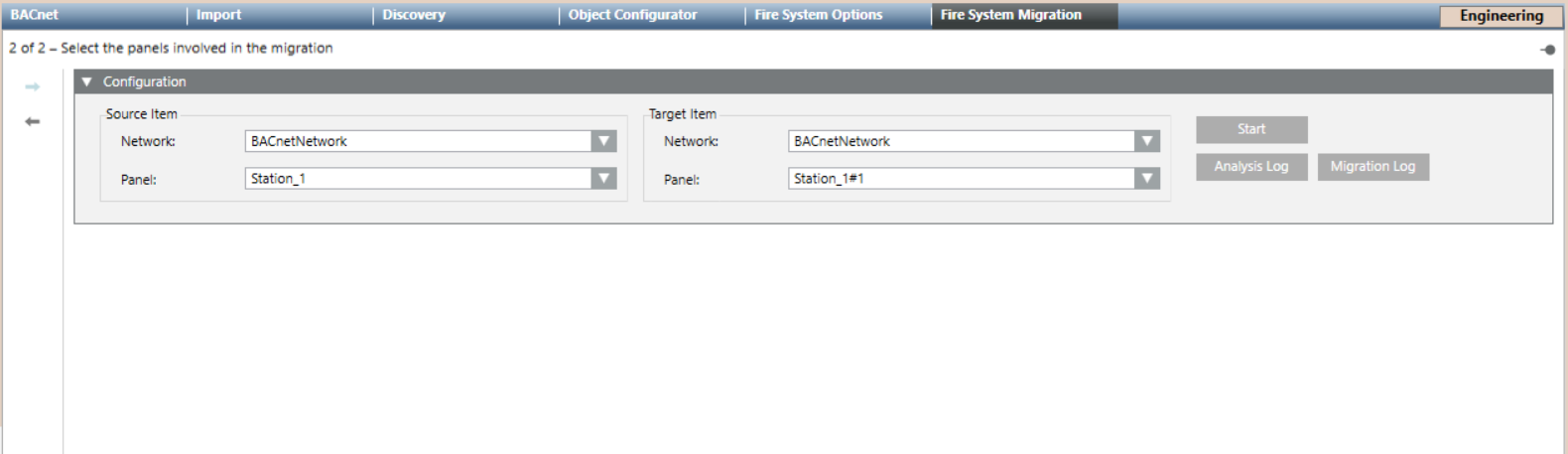
- Page 2 of 2 displays: Select the panels involved in the migration.
- In Source Item, select the Network where the old FS20 is located, then the Panel itself.
- In Target Item, select the Network where the new FS20 is located, then the Panel itself.
- Click Start.
- The System Manager dialog box appears, click Yes to confirm the start of the migration process.
- The migration procedure replaces old FS20 objects with new FS20 objects in all applicable cases (see FS20 Reconfiguration Limits and Compatibility).
NOTE: In case of object mismatch during the search a System Manager dialog box appears, click Yes to proceed anyway.
- The Migration Log button become available.
- Click Migration Log to show the import log.
For information about the log files, see the reference section.
- When finished, to resume normal operational monitoring, set the transaction mode back to logging.
Manually Replace Non-migrated References
In Desigo CC elements that are not migrated, you need to substitute the references to fire objects manually. Refer to FS20 Reconfiguration Limits and Compatibility.
Remove FS20 and BACnet Network
The migration procedure does not remove the old fire system from Desigo CC. You can remove it manually as follows:
- In System Browser, select Project > Field Networks > [BACnet Network].
- In the Fire System Options tab, select the old file units in turn and click Delete
 .
.
- If the BACnet network is longer required, select [BACnet network], the BACnet tab and click Delete .
