Configuring Remote Notifications
Scenario: You want to configure to send out remote notification (RENO) messages to one or more groups of recipients.
Reference: For background information, see Remote Notifications
Workflow diagram:
Prerequisites:
- System Manager is in Engineering mode.
- System Browser is in Application View.
Steps:
You can select an existing remote notification to modify, or begin configuring a new one from scratch.
- Do one of the following:
- To create a remote notification, select Applications > Remote Notifications.
- To modify an existing remote notification, select Applications > Remote Notifications > [remote notification].
- The RENO Configurator tab displays.
You must specify the behavior of the notification. For details, see 2 – Configure the General Settings of the Remote Notification.
- In the RENO Configurator tab, open the General Settings expander.
- Select the Active check box.
- Specify the values for the following fields:
- Priority
- Starting mode
- Delay
- Multiple starting
- Can be stopped
- Stop on alarm ending
- Points state

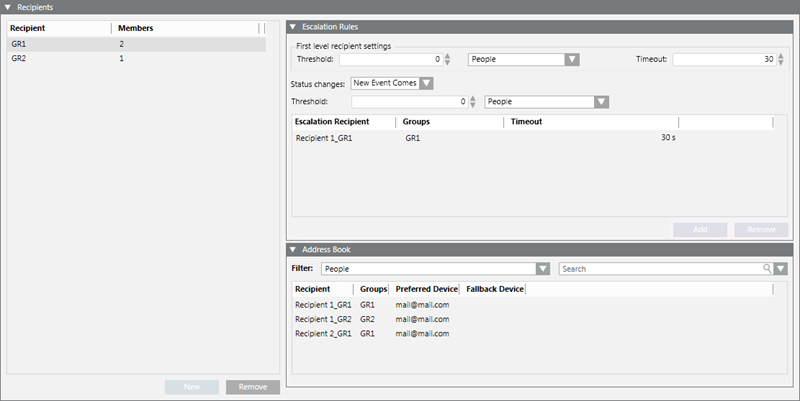
You must specify the recipient groups to which the message will be sent, and optionally, for each recipient group, the escalation rules. For more details, see Recipients of a Remote Notification.
- In the RENO Configurator tab, open the Recipients expander.
- In the Address Book area, in the Filter drop-down list, select one of the following:
- Groups
- People
- Drag-and-drop the group or member from the Address Book area to the Recipient/Members list on the left.
- (Optional) Configure the Escalation Rules for the group:
a. Select the group in the Recipient/Members list.
b. In the Escalation Rules expander, set Threshold.
c. In the Address Book expander, in the Filter drop-down list, select People.
d. Drag-and-drop the escalation recipients you want to add from the Address Book to the Escalation Recipient/Group/Timeout list.
e. Next to each escalation recipient, in the Timeout field set the timeout value within which that person must reply.
f. Set the escalation Threshold.
g. Specify the Status changes field.
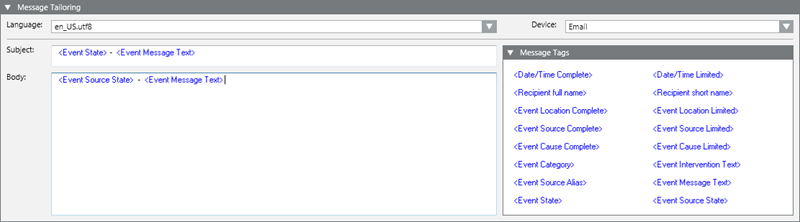
You must compose the actual text of the remote notification message. For details, see Message Tailoring of a Remote Notification.
- In the RENO Configurator tab, open the Message Tailoring expander.
- Specify the following field:
- Language
- Device
- Drag-and-drop any automatic tags you want to use from the Message Tags list into the Subject and Body fields. You can also directly enter text. The subject line cannot be empty.
You must configure at least one trigger for the remote notification—otherwise it will never execute.
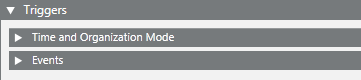
- In the RENO Configurator tab, open the Triggers expander. Here you can configure when and for what combination of event conditions this remote notification will run. For details, see Triggers of a Remote Notification. Do one of the following:
- Open the Time and Organization Mode expander and specify the time-dependent pre-conditions of the remote notification.
- Open the Events expander and specify the combination of events as well as the corresponding status changes that will trigger the remote notification.
- Click Save
 or Save As
  .
.
- (Only for Save As) In the Save Object As dialog box,
a. Select the main Remote Notifications folder.
b. Enter a name and description.
c. Click OK.
- Newly created alarm-triggered remote notifications are enabled by default. To disable a remote notification to prevent it from executing for the time being, see Enabling or Disabling Remote Notifications.
