Select Project > Management System > Servers > Main Server >SMS.
The RENO Configurator tab displays.
Open the SMS Email Provider expander.
Select the Enabled check box to allow Desigo CC to send remote notifications via the email-to-SMS provider. NOTE: Also make sure that GSM provider in the SMS GSM Provider expander is disabled. Otherwise the system will always use the GSM modem, rather than the email-to-SMS provider.
In the SMS Email Provider expander, enter text in the following fields:
Domain name (domain of the service provider, for example, smshosting.it).
Subject prefix (syntax specified by the provider. This is typically a fixed string, for example, “mittentesms” or “smssender” that the provider requires in the email subject line).
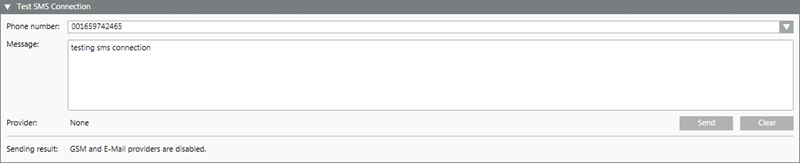
Open the Test SMS Connection expander. This will cause the Provider field to show which SMS provider will be used to send the test message. In this case: Email.
In the Phone number field, enter a valid mobile number directly. Or use the drop-down list to select a recipient from the address book.
In the Message body field, enter the text of the message. Maximum 160 characters.
Click Send.
This will send the test SMS message. In particular, Desigo CC sends an email to the Email-to-SMS provider, which in turn converts that email into an SMS and sends it to the specified phone number. The Sending result at the bottom of the expander shows the outcome (for example, OK, Failed, and so on).
Check that the SMS message is received on the specified phone number.

 .
.