Installing and Configuring Advanced Reporting
Scenario: You want to configure the Advanced Reporting feature and access the reports based on Advanced Reporting using a Installed/Web/Windows App Client on a remote computer.
To install Advanced Reporting using Post-Installation, see Post-Installation Steps for Advanced Reporting.
Reference: For background information, see the reference section.
Workflow diagram:
Prerequisites:
- You have installed a Server with local web server (IIS) using the Custom Installation mode. (see Install Internet Information Services (IIS) on Different OS Types in Complete the Installation Planning Requirements.) and you have:
- Added the extension Advanced Reporting to the Server project, which in turn adds the Web Services and Application Host Base extensions in the project. (see Add an Installed Extension to a Project in Server Projects Configuration Procedures.)
- The dependent extensions (for example, Energy Reports, InfoCenter Reports, and Pharma Reports) for which the template synchronization must be done during the Advanced Reporting template synchronization step must also be selected for installation and added to the Server project.
- Created a website and if Web/Windows App Clients are used then create a web application in SMC. (see Create a Website in Setting up the Web/Windows App Clients.).
- Ensured that the Default Web Client does not belong to any Management Station security group. However, if it does, ensure that this group does not restrict access rights, otherwise, you are not able to view the reports.
- On a remote computer, you have:
- Imported the website/web application certificate in the appropriate Windows Certificate store. (see Import a Certificate in the Windows Store in Setting the Certificates as Default Certificates.).
Steps:
You must configure Open JDK 11.0.2 to work with advanced reports. For more information, see the ReadMe.txt file under …\InstallerDVD\InstallFiles\EM\Advanced_Reporting\AddSW on the software distribution.
- Download the zip file for Windows 64 bit from the 11.0.2 section from the following site:
- Extract the contents of the zip file to a folder and place the folder at the following recommended path on the server computer, C:\Program Files\Java.
- Set the JAVA_HOME system environment variable to Open JDK root directory path, for example, JAVA_HOME=C:\Program Files\Java\jdk-11.0.2. (see Set Environment Variables to Configure Open JDK in Additional Advanced Reporting Procedures).
Install the Advanced Reporting MSI that in turn installs Tomcat Server and Business Intelligence and Reporting Tools (BIRT).
- Navigate to the …\InstallerDVD\InstallFiles\EM\Advanced_Reporting\AddSW folder on the software distribution.
NOTE: Beware that there is another Advanced_Reporting msi file located at the path
…\InstallerDVD\InstallFiles\EM\Advanced_Reporting. Do not use this to manually install Advanced Reporting.
- Double-click the Advanced_Reporting msi file.
- The Install Shield wizard for Advanced Reporting displays.
- Follow the instructions provided in the wizard to complete the installation.
NOTE: You can also change the value of the default connector port to a different value. You must note down the port number as you will need it when 4 – Configure the Main URL for Advanced Reporting and 3 – Create an Advanced Reporting Web Application.
- The Advanced Reporting MSI is installed.

NOTE:
After the installation is complete, ensure that the Tomcat/Apache Tomcat service is running in the Services.
Otherwise, you must manually start it.
You need to create the Advanced Reporting web application to work with Advanced Reporting using the Web/Windows App Clients on the remote computer.
- In the SMC tree, navigate to Websites > [website] where you want to create a web application.
- Click Create Web Application
 .
.
- Select Create Advanced Reporting Application and proceed as follows:
a. In the Advanced Reporting Information expander, retain default URL: http://localhost:18080/gms-birt.
b. In the Web Application Details expander, type a unique name for the web application.
c. Click Save . A confirmation message displays.
d. Click OK.
- The data is validated and, on successful creation, the following occurs:
- A new Advanced Reporting web application node is created and selected by default.
- A read-only URL for Tomcat Server http://localhost:18080/gms-birt displays in the Advanced Reporting Information expander.
- A read-only https URL for Advanced Reporting web application
https://[Fully qualified host name of the Tomcat server]:[Port Number]/[Advanced Reporting web application name] displays in the Web Application Details expander.
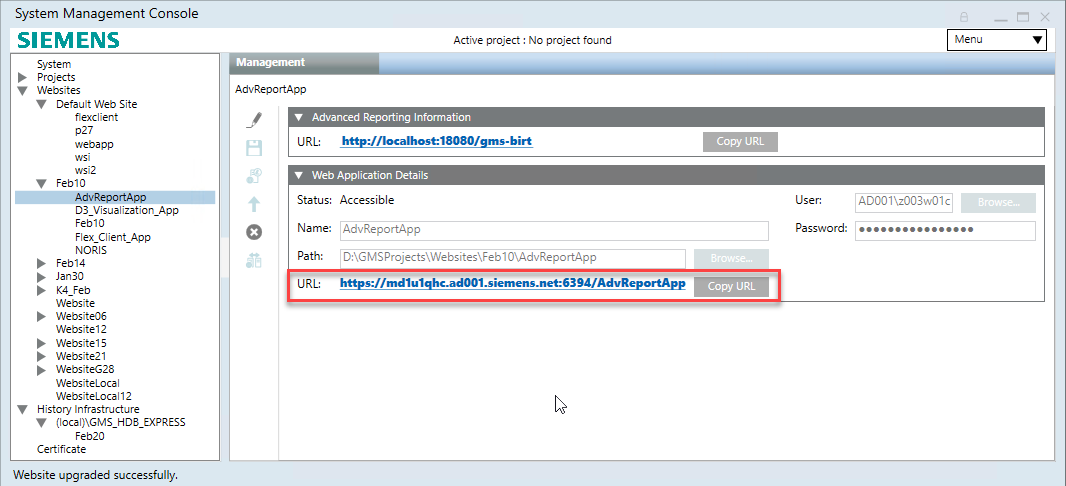
- In the System Management Console (SMC) proceed as follows:
a. In the SMC tree, select the Advanced Reporting web application, if not already selected.
b. From the Web Application Details expander, click Copy URL to copy the URL for Advanced Reporting web application:
https://[Fully qualified host name of the Tomcat server]:[Port Number]/[Advanced Reporting web application name]
- In the SMC tree, select the Server project that you want work with.
- In the toolbar, click Start
 to start the Server project.
- Logon to the Desigo CC Client application.
- In System Browser, select Application View.
- Select Applications > Advanced Reporting.
- In the Extended Operation tab, in the Main URL Value text box, paste the copied https URL and click Set.
- The Main URL is configured.
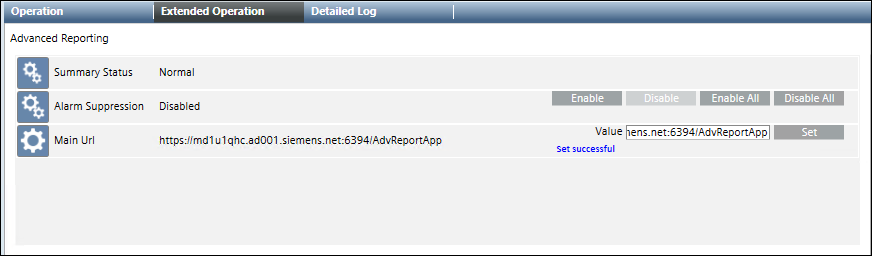
- In the Application Viewer tab, click the link for Configuration Page.
- The Configuration Page - Advanced Reporting displays.
If the configuration page does not display, it means that either the Main URL is not configured properly or the Tomcat Server is not reachable or has stopped.
Alternatively, the Default Web Client, internally used for accessing the Advanced Reports, restricts the access rights. For more information, see No Access to View Reports.
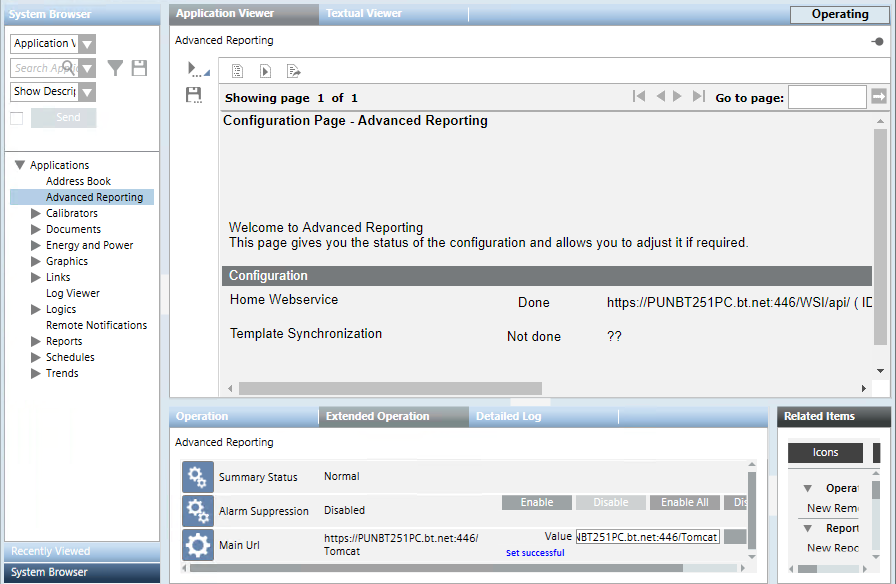
- In the Configuration Page - Advanced Reporting, click Details adjacent to the Home Webservice.
- Click Delete, and thereafter click Add.
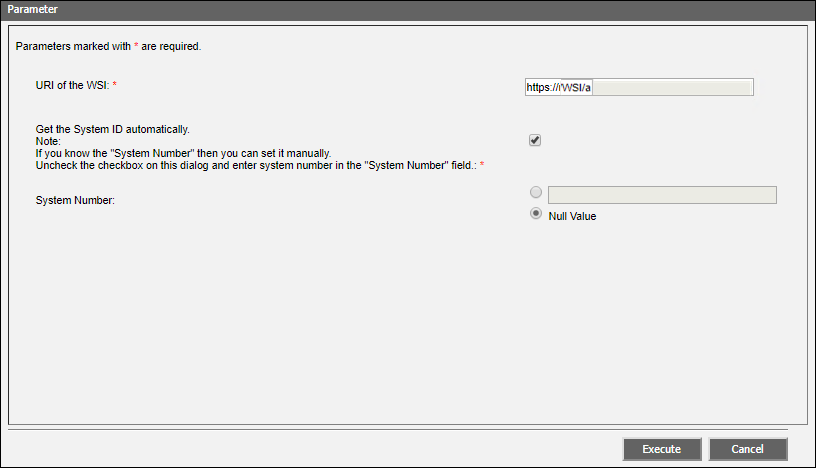
- In the Parameter dialog box for Web Services configuration that displays, specify the WSI URL.
For example, URL: http://localhost:8080/api/.
This is because as both the Advanced Reporting and Web Services (WSI) are on the same Server.
Do any of the following:
- Verify that the Get the System ID automatically checkbox is selected which in turn fetches the System ID of the system to which the Web Services belongs once you click Execute.
- Uncheck the Get the System ID automatically checkbox and then type the System ID of the system to which the Web Services belongs in the System Number field and click Execute.
- The Web Services URL displays with the status
Done.
Use this procedure to deploy the Advanced Reporting templates from the library to the Tomcat server. If the dependent extensions (for example, Energy Reports, InfoCenter Reports, and Pharma Reports) are added to the project, then the respective templates are already deployed in the libraries at the path [InstallationDrive]:\[Installation Folder]\[Project Name]\libraries\[Library Name]\AdvRpt\[Zip File for Pharma or Energy Reports (AdvR_GMS_Pharma or AdvR_GMS_EnergyReport].
- The dependent extensions (for example, see Energy Reports, InfoCenter Reports, and Pharma Reports) for which the template synchronization must be done during the Advanced Reporting template synchronization step are added to the Server project along with the Advanced Reporting extension.
- In the Configuration Page - Advanced Reporting, click Details adjacent to Template Synchronization.
- In the section now visible above, click Add.
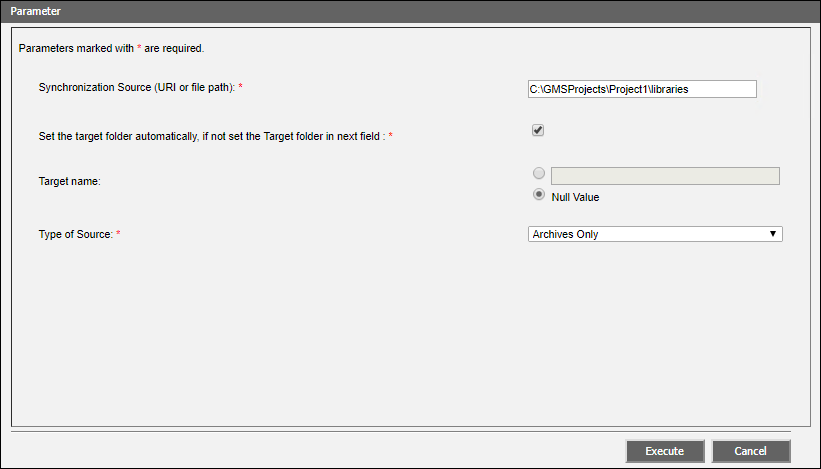
- The Parameter dialog box for template synchronization displays. Do the following:
a. In the Synchronization Source (URL or file path) field, enter the path to the libraries folder of your project. For example, [Installation Drive]:\GMSProjects\[Project Name]\libraries.
b. Ensure the Set the target folder automatically, if not set the Target folder in next field checkbox is selected to automatically set the ID of the system as the name of the folder where the advanced reporting templates will be extracted on the Tomcat server.
Alternatively, to manually enter the System ID, uncheck the check box and then select the option button next to Target name and type the System ID.
c. In the Type of Source drop–down list, retain the default Archives Only.
d. Click Execute.
- Click Synchronize.
- The Advanced Reporting templates (including the templates for the configured dependent extensions such as Energy and Pharma reports) are synchronized and deployed at the path
C:\Program Files\Apache Software Foundation\Tomcat 9.0\webapps\gms-birt\[System ID]
folder on the Tomcat Server.
Next, you can proceed with the configuration of reports based on Advanced Reporting, for example, Energy Reporting, InfoCenter Reporting, and Pharma Reporting.
